
Advanced Filtering
WePROXA includes a multi-layered filtering system that lets you quickly find the exact requests you’re looking for among thousands of captured entries.
Quick Filter
Section titled “Quick Filter”The filter bar at the top of the request list lets you search with three modes:
- URL — searches across the full URL, host, and path
- Request — searches the HTTP method, URL, client/app name, and request body
- Response — searches the status code, content type, and response body
Select the mode from the dropdown next to the filter input. Search is instant and case-insensitive.
Content-Type Filter
Section titled “Content-Type Filter”A row of category buttons sits above the request list for quick content-type filtering:
all · html · css · js · json · media · font · xml · wasm · other
Click a button to show only that type. Cmd+Click (macOS) or Ctrl+Click (Windows/Linux) to select multiple types at once.
Filter from the Context Menu
Section titled “Filter from the Context Menu”You can build or extend a filter straight from a captured request without constructing every rule by hand. Right-click a request and open Add to Filters:
- Same Host — show only requests to the selected request’s host
- Same Path — match the exact path across hosts
- Same Endpoint — match the selected host and path together
- Similar Requests — match the selected method, host, and path together
- Same Client — show requests from the selected request’s attributed client or app
Each choice adds its exact-match conditions to the current query, enables the advanced filter when needed, and opens the builder so you can review the result. Existing AND rules are preserved, duplicate active conditions are skipped, and complex OR or NOT expressions are grouped before the new conditions are applied. The menu label shows the current active-rule count once filters are in use.
Extend or Replace
Section titled “Extend or Replace”A plain click extends the current query. Hold ⌘ (macOS) or Ctrl (Windows/Linux) while choosing an entry to replace it instead, discarding the rules already in the builder.
Replacing matters because these conditions are combined with AND. Picking Same Host while rules from an unrelated investigation are still in place usually intersects to nothing, leaving an empty request list with no obvious cause. A ⌘/Ctrl-click starts clean in one action instead.
The Add to Filters entry shows a +clear hint whenever there is something to replace. Inactive rules count toward that: they are still what a ⌘/Ctrl-click would discard, and they resume filtering the moment the panel is enabled.
Because these shortcuts use the query builder, filtering from the context menu is a Pro feature.
Query Builder
Section titled “Query Builder”For more complex queries, use the advanced query builder:
-
Click the filter icon in the toolbar to expand the query builder panel
-
Add conditions using the visual builder
-
Combine conditions with AND / OR logic
-
Nest groups for complex expressions (e.g.,
(host = api.example.com AND method = POST) OR status > 499)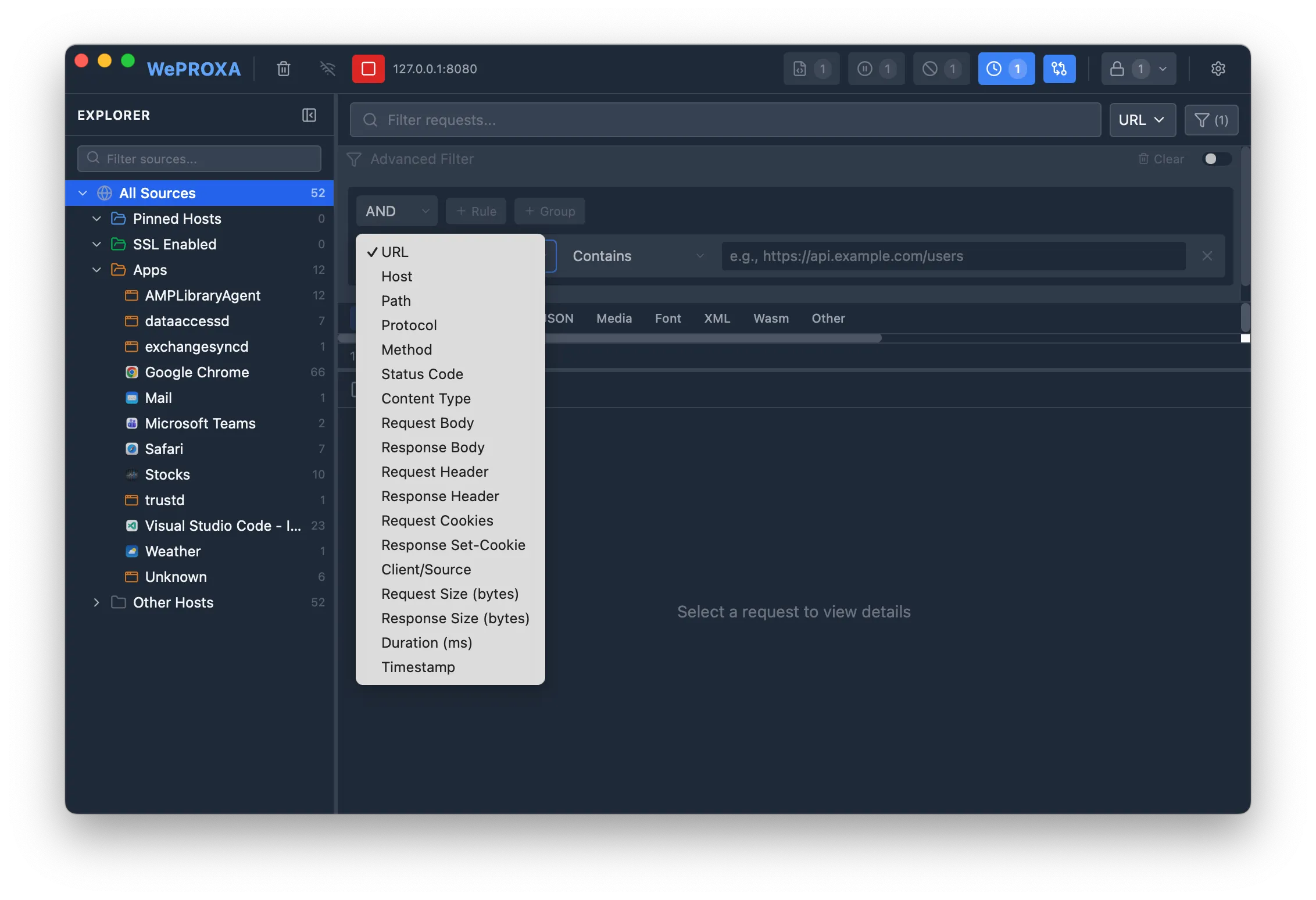
Use Cmd+Click (macOS) or Ctrl+Click (Windows/Linux) on the filter icon to enable or disable the filter without clearing your rules.
Activating Individual Rules
Section titled “Activating Individual Rules”Each rule in the query builder has its own Active / Inactive toggle. Deactivating a rule keeps it in the builder — so you can edit it later — but excludes it from evaluation, letting you temporarily narrow or widen a query without deleting and rebuilding conditions. A summary next to the Advanced Filter title shows how many rules are currently active out of the total (e.g., Active: 2/3).
Your query builder rules and each rule’s active state are saved, so they persist across app restarts until you clear them.
Saved Filters
Section titled “Saved Filters”When a query is worth keeping, save it under a name and reapply it later instead of rebuilding the conditions. Saved filters live in the Filters folder of the Explorer sidebar.
Saving a Filter
Section titled “Saving a Filter”- Build a query in the advanced filter panel.
- Choose Save filter in the panel header.
- Enter a name and confirm.
Once a saved filter is applied, its name appears in the panel header and the header offers two actions:
- Save changes — overwrite the applied filter with your current rules.
- Save as — keep the original and store the current rules under a new name.
An amber name with a trailing dot means the rules in the builder no longer match the saved version. A filter needs at least one rule before it can be saved, names must be unique, and they are limited to 100 characters.
Applying and Managing Filters
Section titled “Applying and Managing Filters”Click any entry in the Filters folder to apply it. Each row shows how many of its rules are active out of the total, and the applied filter stays highlighted while the advanced filter is enabled.
If the builder holds unsaved rules, WePROXA asks before replacing them so you don’t lose work in progress — choose Discard & Apply to continue.
Right-click a saved filter, or use the ⋯ button on its row, for:
- Edit rules — apply the filter and open the query builder on it
- Rename
- Clone — create an independent copy you can edit without touching the original
- Delete
Deleting a saved filter does not change the filter currently shown in the request list. The Explorer search box also matches saved filter names, so a long list stays easy to navigate.
Saved filters are global. They are not owned by a Workspace or Scenario, so the same filter stays available when you switch between them. A saved filter narrows whatever you are currently viewing — it combines with the selected Explorer source rather than replacing it.
Press ⌘ ⇧ F (macOS) or Ctrl + Shift + F (Windows/Linux) to show or hide the advanced filter panel while you work.
Saved Requests Limitations
Section titled “Saved Requests Limitations”When the sidebar selection is inside Saved Requests, filtering is intentionally narrower than live traffic filtering:
- URL and other metadata filters still work
- Request and Response search modes do not search saved request or response bodies
- Backend-only advanced filters such as body, header, and cookie matching are not applied in that view
WePROXA shows an in-app warning whenever part of the active filter cannot run against saved snapshots.
Available Fields
Section titled “Available Fields”Text fields
Section titled “Text fields”- URL — the full request URL
- Host — the server hostname
- Path — the URL path
- Query String — the URL query string (e.g.,
id=42&sort=asc) - Client/Source — the application that made the request
- Request Body — the request payload content
- Response Body — the response payload content
- Request Header — search across request header names and values
- Response Header — search across response header names and values
- Request Cookies — cookies sent with the request
- Response Set-Cookie — cookies set by the response
Enum fields
Section titled “Enum fields”- Method — HTTP method (GET, POST, PUT, DELETE, PATCH, HEAD, OPTIONS, CONNECT, TRACE)
- Protocol — HTTP version (HTTP/0.9, HTTP/1.0, HTTP/1.1, HTTP/2.0, HTTP/3.0)
- Status Code — HTTP status code, with wildcard support (e.g.,
2xxfor any 200-level,4xxfor any 400-level) - Content Type — response MIME type with common values (JSON, HTML, CSS, images, etc.)
Numeric fields
Section titled “Numeric fields”- Duration — request round-trip time in milliseconds
- Request Size — request body size in bytes
- Response Size — response body size in bytes
Date fields
Section titled “Date fields”- Timestamp — when the request was captured
Operators
Section titled “Operators”Different field types support different operators:
Text operators
Section titled “Text operators”Equals · Does not equal · Contains · Does not contain · Starts with · Ends with · Matches regex · Is empty · Is not empty
Numeric operators
Section titled “Numeric operators”= · ≠ · > · < · ≥ · ≤ · Between
Enum operators
Section titled “Enum operators”Equals · Does not equal · Is one of · Is not one of
Date operators
Section titled “Date operators”Equals · Before · After · Between
How Filtering Works
Section titled “How Filtering Works”WePROXA uses a split filtering strategy for performance:
- Simple queries (URL, host, path, method, status, etc.) are evaluated client-side for instant results
- Body and header queries (request/response body, headers, cookies) are sent to the backend for evaluation on live captured traffic, with a 300ms debounce to avoid excessive searches
This split happens automatically — you don’t need to choose. The query builder routes each query to the appropriate engine based on the fields used.
Saved request snapshots are filtered client-side by metadata only.
- Use
status code→is one of→4xx, 5xxto find all error responses - Combine
host contains apiANDmethod equals POSTto find API mutations - Use
protocol equals HTTP/2.0to focus on traffic that negotiated HTTP/2 - Filter by
content type contains jsonto see only JSON responses - Use
matches regexfor complex pattern matching (e.g.,/api/v[0-9]+/users) - Use
duration > 1000to find slow requests (over 1 second) - Use
response body contains errorto search inside response payloads - When working in Saved Requests, prefer host, path, method, status, size, and timestamp filters over body or header filters