
MCP Integration
Overview
Section titled “Overview”WePROXA runs a local MCP server over stdio that lets compatible AI tools inspect captured traffic and operate WePROXA’s debugging features. The client launches the bundled weproxa-mcp helper and exchanges MCP messages through its standard input and output; the helper relays them to the running app over an OS-protected Unix socket on macOS or named pipe on Windows.
The server:
- has no TCP port, URL, or bearer token to configure;
- accepts local connections through an endpoint restricted to the current OS user;
- ships the helper command with the app on macOS and Windows;
- reports the WePROXA server name and version during the MCP handshake;
- exposes captured-traffic, saved-request, capture-session, request-replay, Workspace, Scenario, bundle, proxy, rule-management, paused-breakpoint, containment, certificate, SSL-host, and tool-state capabilities.
MCP tools can both read data and change WePROXA state. Review an AI client’s proposed tool calls before approving actions that start or stop the proxy, activate a Workspace or Scenario, or change rules.
Enable the MCP server
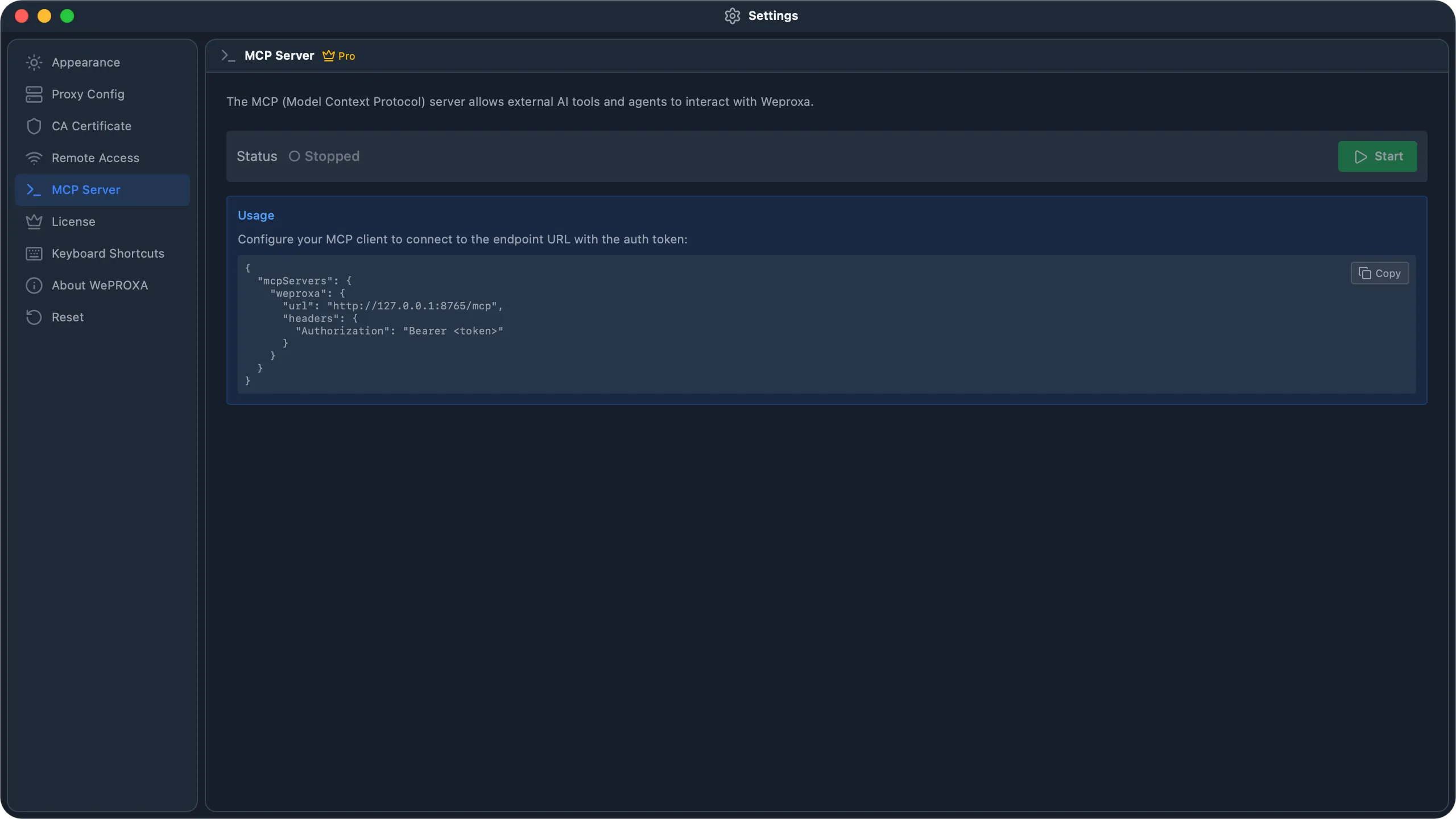
Section titled “Enable the MCP server”- Open Settings in WePROXA.
- Select MCP Server.
- Keep Hide sensitive data enabled unless you have a specific reason to expose unredacted captured values.
- Choose Start.
- Install the plugin below for your supported client, or open AI Connections to generate a manual configuration.
Connect an AI tool
Section titled “Connect an AI tool”Install the MCP and skills plugin
Section titled “Install the MCP and skills plugin”The WePROXA plugin installs the MCP connection and three skills together: connection diagnosis, captured-traffic inspection, and mock-scenario authoring. Plugin 0.4.0 launches the installed weproxa-mcp command directly, so you do not need to copy JSON or TOML.
The plugin supports Codex, Claude Code, VS Code with GitHub Copilot, GitHub Copilot CLI, and Cursor. Use a client version with agent plugin support; Cursor uses the Agent Plugins 1.0 format.
Requirements
Section titled “Requirements”The plugin’s MCP entry is "command": "weproxa-mcp" — a bare command name with no path and no fallback. Every requirement below exists because of that one line.
-
WePROXA runs on the same macOS or Windows host as your AI client. This transport is local; a cloud agent, remote SSH host, Linux container, or WSL environment cannot reach it.
-
The
weproxa-mcpcommand is registered — see Register the command below. -
The MCP server is running in Settings → MCP Server, with an active Pro license.
-
Verify before you install the plugin. Open a new terminal and run:
Terminal window weproxa-mcp --versionIf that fails, stop and register the command first. Node.js is only required for the automatic installer, not for the installed MCP connection.
Register the command
Section titled “Register the command”Settings → MCP Server shows what weproxa-mcp currently resolves to on this machine, and whether it points at this copy of WePROXA or a different one.
- macOS: move the app out of the DMG into Applications, launch it, and accept Install command. macOS requests administrator permission to create
/usr/local/bin/weproxa-mcp, a link to the helper inside the app. Retry, or repair a moved-app link, from the same panel. The command-line installer also registers it. - Windows: standalone installers register the install directory on PATH. Microsoft Store installs provide the
weproxa-mcp.exeexecution alias; turn it on in Windows app execution alias settings if it is disabled.
Fully quit and reopen your AI client afterwards — a running process keeps the PATH it started with, so restarting the MCP server alone is not enough. A desktop client’s PATH can also differ from a terminal’s. These setup actions require an app build with command-registration support; older builds and development builds use the manual absolute-path configuration instead.
Use the setup shown in WePROXA
Section titled “Use the setup shown in WePROXA”Open Settings → MCP Server → AI Connections and select your client. For Codex, Claude Code, VS Code with GitHub Copilot, and Cursor, WePROXA shows a WePROXA plugin card above the manual configuration:
- Automatic installer is the recommended one-line
npx @weproxa/wizard@latest mcp add --client …command with the selected client already filled in. - Client CLI alternative shows the equivalent native marketplace and install commands when that client provides them.
- Cursor shows the automatic installer plus a note linking to its repository-import and local-checkout alternatives, because Cursor has no plugin CLI.
- VS Code explains that its native alternative requires GitHub Copilot CLI, which owns the install for both surfaces.
The copy buttons stay disabled until the weproxa-mcp status at the top of the settings page is Installed and resolves to the running copy of WePROXA. If the command is missing, belongs to another installation, or cannot be registered by this build, use the manual configuration shown lower in the same client panel; it names the helper by absolute path and does not depend on PATH.
After either plugin installation method, fully quit and reopen the client so it inherits the registered command and discovers the plugin.
Quick install
Section titled “Quick install”With Node.js 20 or newer, run:
npx @weproxa/wizard@latest mcp addThe installer verifies the native helper, detects supported clients, shows the
targets, and asks before making changes. It installs the MCP connection and all
three skills together. Use --client codex, --client claude, --client copilot, or --client cursor to choose a target; repeat the option for several
targets. --dry-run previews every action and --yes supports non-interactive
installation.
For Cursor, the installer copies the packaged Agent Plugin to
~/.cursor/plugins/local/weproxa. For the other clients, it registers the
WePROXA marketplace and installs the plugin through the client’s own CLI. The
npm package never downloads or replaces the native weproxa-mcp helper.
The VS Code target installs through the GitHub Copilot CLI, which owns the
install for both surfaces. Without copilot on PATH there is nothing to run.
To undo an install, use mcp remove with the same options:
npx @weproxa/wizard@latest mcp remove --client cursorRemoval does not need the weproxa-mcp helper, so it still works when the
helper is what broke. It leaves the WePROXA marketplace configured, because you
may have added it by hand.
Install manually
Section titled “Install manually”Codex
codex plugin marketplace add ennbou/weproxa-plugincodex plugin add weproxa@weproxa-pluginsStart a new Codex session and ask: “Use WePROXA to check my connection without changing anything.”
Claude Code
claude plugin marketplace add ennbou/weproxa-pluginclaude plugin install weproxa@weproxa-pluginsStart a new Claude Code session and run /weproxa:connect. The other skills are /weproxa:inspect-traffic and /weproxa:mock-scenario; the agent can also select them when relevant to your task.
GitHub Copilot CLI
copilot plugin marketplace add ennbou/weproxa-plugincopilot plugin install weproxa@weproxa-pluginsStart a new Copilot session and ask: “Use WePROXA to check my connection without changing anything.” Run copilot plugin list to confirm installation and use /mcp to inspect its connection.
VS Code + GitHub Copilot
- Ensure agent plugins are enabled in VS Code (
chat.plugins.enabled). - Add
ennbou/weproxa-pluginto Chat: Plugins: Marketplaces in Settings (chat.plugins.marketplaces), preserving existing entries. - In Extensions, search
@agentPluginsand install weproxa from weproxa-plugins. - Open a new Copilot chat in Agent mode and ask it to check the WePROXA connection.
VS Code also discovers plugins installed through Copilot CLI. If you used the CLI commands above, check Agent Plugins - Installed first. See VS Code’s plugin guide.
Cursor
For a local installation on macOS, run these commands from the directory where you want to keep the plugin checkout:
git clone https://github.com/ennbou/weproxa-plugin.gitmkdir -p ~/.cursor/plugins/localln -s "$(pwd)/weproxa-plugin/plugins/weproxa" ~/.cursor/plugins/local/weproxaOn Windows, clone the repository and copy the complete plugins/weproxa/ directory, including hidden directories, to %USERPROFILE%\.cursor\plugins\local\weproxa\. Reload Cursor and check Customize for the MCP server and three skills, then ask it to check your WePROXA connection. Managed accounts require local plugin imports to be allowed.
Teams can import the repository through Dashboard → Plugins → Add Marketplace → Import from Repo and install it from their team marketplace. Public Cursor Marketplace listing requires a separate review; the plugin is not yet listed there. See Cursor’s plugin installation guide.
Plugin installation registers the connection and skills. It does not launch WePROXA or change your system proxy settings. If you already configured WePROXA manually, verify the plugin connection before disabling the old entry to avoid duplicate tools. For a custom app location, see the plugin’s native command setup instructions.
Configure an MCP client manually
Section titled “Configure an MCP client manually”Choose your client and scope below. The generator creates the client’s own stdio configuration format rather than applying one JSON shape everywhere. Its helper path is a placeholder because this website cannot inspect where WePROXA is installed; the in-app generator fills the path automatically.
Private, local configuration
Build your client configuration
Generation happens in this browser tab. No endpoint or credential is requested, stored, or sent by this page.
The in-app generator supplies the installed helper path automatically. For this template, replace <WEPROXA_MCP_HELPER_PATH> with that command locally.
Selected client
VS Code / GitHub Copilot
VS Code mcp.jsonGitHub Copilot Chat and Agent mode use VS Code’s native MCP support. “VS Code” on this page does not mean the Codex or Claude extensions.
- Store or enter it
- Run “MCP: Open User Configuration” to edit your profile’s mcp.json.
- Add the server to .vscode/mcp.json in the current workspace.
- Manual fallback
- Run “MCP: Add Server” or open the selected mcp.json, then merge the generated weproxa entry without removing your other servers.
- Verify
- Run “MCP: List Servers”, open WePROXA, and inspect its discovered tools. You can also use “Configure Tools” in Chat.
- Remove or disable
- Disable WePROXA from “MCP: List Servers”, or remove its entry from the selected mcp.json.
- Client-specific troubleshooting
- Choose “Show Output” or “Restart Server”. If tools are stale, run “MCP: Reset Cached Tools”.
Selected client
Cursor
Cursor mcp.jsonCursor Agent and its MCP tools use the same Cursor configuration for the selected scope.
- Store or enter it
- Merge the server into ~/.cursor/mcp.json for use across projects.
- Merge the server into .cursor/mcp.json in the current project.
- Manual fallback
- Open Cursor Settings → MCP & Integrations, or edit the selected mcp.json and preserve any existing mcpServers entries.
- Verify
- Open Cursor Settings → MCP & Integrations and confirm WePROXA is connected and its tools are available to Agent.
- Remove or disable
- Turn off WePROXA in MCP settings, or remove its entry from the selected mcp.json.
- Client-specific troubleshooting
- Confirm the helper command still exists and is executable, then restart WePROXA from MCP settings.
Selected client
Codex
Codex config.tomlCodex CLI and the Codex VS Code extension share one Codex configuration, so configure WePROXA only once per scope.
- Store or enter it
- Merge the table into ~/.codex/config.toml for all Codex projects.
- Merge the table into .codex/config.toml in a trusted project for workspace-only access.
- Manual fallback
- Open the selected config.toml and merge the generated table. Keep only one [mcp_servers.weproxa] table at that scope.
- Verify
- Run “codex mcp list”, use “/mcp” in Codex CLI, or inspect MCP servers from the extension gear menu.
- Remove or disable
- Run “codex mcp remove weproxa” for a user server, or remove the table from the selected config.toml.
- Client-specific troubleshooting
- Restart Codex after editing config.toml. Check for duplicate tables, a missing helper command, or a project that has not been trusted.
Selected client
Claude Code
Claude Code CLIClaude Code in the terminal and the Claude Code VS Code extension are one client and use the same Claude Code MCP setup.
- Store or enter it
- The generated command uses Claude Code’s user scope for all projects.
- The generated command uses Claude Code’s private project-local scope for this workspace.
- Manual fallback
- Replace the helper placeholder locally, run the generated command, and review project-server trust when Claude Code prompts.
- Verify
- Run “claude mcp list” or open “/mcp” in Claude Code and confirm WePROXA reports Connected.
- Remove or disable
- Use “claude mcp remove weproxa” from the matching scope, or remove WePROXA through “/mcp”.
- Client-specific troubleshooting
- Use “claude mcp get weproxa” for details. Pending project servers must be approved from a trusted interactive session.
Selected client
JetBrains AI Assistant
JetBrains stdio MCP JSONJetBrains AI Assistant uses its MCP settings and JSON paste/import flow for supported JetBrains IDEs.
- Store or enter it
- Choose the global server level in the JetBrains MCP dialog.
- Choose the current-project server level in the JetBrains MCP dialog.
- Manual fallback
- Open Settings → Tools → AI Assistant → Model Context Protocol (MCP), add a stdio server, paste the JSON, and choose the server level.
- Verify
- Click Apply, check the Status column, then open the available-tools control for WePROXA.
- Remove or disable
- Clear its checkbox and click Apply to disable it, or remove the WePROXA row from MCP settings.
- Client-specific troubleshooting
- Use Reconnect, confirm stdio is selected, and inspect the IDE mcp logs if the status does not become connected.
Selected client
Other MCP client
stdio mcpServers JSONUse this portable shape when your client accepts mcpServers JSON with a local stdio command.
- Store or enter it
- Use the client’s user/global MCP configuration if it supports one.
- Use the client’s project/workspace MCP configuration if it supports one.
- Manual fallback
- Open your client’s MCP documentation, confirm its stdio field names, and merge the generated server without deleting existing entries.
- Verify
- Inspect the client’s server status and discovered tools. The exact screen or command depends on the client.
- Remove or disable
- Disable the server or remove the weproxa entry using the client’s MCP settings.
- Client-specific troubleshooting
- Confirm the client supports local stdio servers and can launch the generated helper command.
Generated format
VS Code mcp.json
{
  "servers": {
    "weproxa": {
      "type": "stdio",
      "command": "<WEPROXA_MCP_HELPER_PATH>"
    }
  }
}Prefer the live configuration from WePROXA
- Open Settings → MCP Server in WePROXA.
- Open AI Connections and select the same client and scope. The Configuration preview appears below.
- Copy that configuration directly, or replace the helper placeholder above with its
commandvalue.
The generated formats follow each client’s current MCP contract: VS Code, Cursor, Codex, Claude Code, and JetBrains AI Assistant.
Generate the configuration inside WePROXA
Section titled “Generate the configuration inside WePROXA”For manual setup, use Settings → MCP Server → AI Connections. It builds the configuration from the helper installed with the running app, so the executable path is exact and there is no endpoint or credential to keep in sync.
- Start the MCP server.
- Open Settings → MCP Server and go to AI Connections.
- Select your client and a User or Workspace configuration scope.
- Review the Configuration preview, then copy it with the copy button in its top-right corner.
- Paste it into your client. Open client instructions explains where that file lives and how to remove the entry later.
Each client shows its own status:
- Not configured — nothing has been copied for the selected scope yet.
- Setup copied — you copied a configuration that still matches the available helper.
- Connected — the client completed a real MCP handshake. WePROXA shows its reported version and the last connection time.
- Needs attention — the server stopped, the bundled helper is unavailable, or the copied command no longer matches this installation. Start the server and copy a fresh configuration.
Only Connected reflects a verified connection; the other states describe your setup progress. If a client that WePROXA does not recognize completes a handshake, the panel reports it generically rather than retaining the arbitrary name it sent.
The Open WePROXA to connect button in the generator above hands the selected client and scope to this panel through a weproxa:// deep link. The link only preselects those two values — it never starts the server or carries the helper path.
Verify the connection
Section titled “Verify the connection”Use the client-specific verification guidance in the selector, then run this harmless test:
Ask WePROXA for the current proxy status. Do not start, stop, or modify anything.
Expected client checks:
- VS Code / GitHub Copilot: run MCP: List Servers, select WePROXA, and inspect its tools.
- GitHub Copilot CLI: run
copilot plugin list, then use/mcpin a new session. - Cursor: open MCP settings and confirm WePROXA’s tools are enabled.
- Codex CLI or VS Code extension: run
codex mcp listor use/mcp. - Claude Code terminal or VS Code extension: run
claude mcp listor use/mcp. - JetBrains AI Assistant: check the connection status and open the available-tools list.
- Other clients: use the client’s MCP server-status and tool-discovery view.
A configured entry is not proof of a working connection. Confirm that the helper starts, WePROXA reports the client as connected, and the client advertises weproxa_proxy_status.
Example debugging workflows
Section titled “Example debugging workflows”Read-only prompts
Section titled “Read-only prompts”These prompts inspect current state and should not modify WePROXA:
Inspect recent failed requests
List the 20 most recent captured requests with an HTTP status of 400 or higher.Summarize the failing hosts, paths, methods, and status codes. Do not modify WePROXA.Diagnose an API response
Inspect the captured request and response for request ID <REQUEST_ID>.Explain the most likely cause of the API failure using its status, headers, and bounded body.Do not create rules or change proxy state.Check the active Workspace
List WePROXA Workspaces and tell me which Workspace is active.Then list that Workspace's active Scenario and effective tool states. Do not change anything.Prompts that change state
Section titled “Prompts that change state”The following prompts create or activate debugging configuration. Review the proposed values and approve the tool call only when they are correct.
Create a Map Local rule
First summarize the active Workspace and Scenario. Then create an enabled Map Local rule named"Mock profile" for GET requests matching **/api/profile, using the local file/absolute/path/to/profile.json. This changes WePROXA state; show the exact rule before creating it.Add Network Conditioning
In the active Workspace and Scenario, create an enabled Network Conditioning rule named"Slow catalog" for **/api/catalog with a 1200 ms response delay and no request delay.Show the proposed rule and ask for confirmation before creating it.Create or activate a Scenario
In the active Workspace, create a Scenario named "Checkout timeout" with acceptance criteria thatthe checkout UI shows a retry action after a delayed response. Preview activation first, summarizethe effective-rule and tool-state changes, and ask for confirmation before activating it.Security
Section titled “Security”- Configuration generation runs entirely in the browser. Nothing is submitted to WePROXA’s website or another server.
- Generated examples contain only
<WEPROXA_MCP_HELPER_PATH>. Replace it locally or copy the completed configuration from the app. - The app handoff URL contains only a controlled client and scope. It never contains a command, configuration, credential, hostname, or file path.
- The private app endpoint is a Unix socket or named pipe restricted to the current OS user; it is not a network listener.
- Client configuration files contain a machine-specific executable path. Keep that path in user or private local configuration rather than committing it for a team.
- Hide sensitive data redacts likely credentials and payment-card values in traffic returned through MCP. Binary bodies that cannot be inspected safely are omitted.
- Request and response bodies returned by detail tools are bounded. Request listings do not include response bodies.
- A client running as another OS user, on another computer, or inside an isolated VM or container cannot open the host user’s private endpoint directly.
Troubleshooting
Section titled “Troubleshooting”The client cannot find weproxa-mcp
The client reports spawn weproxa-mcp ENOENT, command not found, or is not recognized as an internal or external command, and no weproxa_* tools appear. The command is not registered on the PATH that client was launched with.
Open Settings → MCP Server. The command row names the current state and, on macOS, offers Install / repair. On Windows, re-run the installer or turn on the execution alias. Then fully quit and reopen the client. If you cannot register the command, use the manual absolute-path configuration, which needs nothing on PATH.
weproxa-mcp runs but connects to the wrong app
The command answers --version but the tools act on a different copy of WePROXA, or report that nothing is running. The registered command points at another install — usually after moving the app. Settings → MCP Server names the path it resolves to and offers a repair.
The helper finds WePROXA’s endpoint in this order: a --socket <path> argument, then the WEPROXA_MCP_SOCKET environment variable, then the built-in default. A normal install needs neither. If your client’s environment sets WEPROXA_MCP_SOCKET, or an old configuration still carries --socket, remove it and copy a fresh configuration from AI Connections. WePROXA writes --socket itself only when its endpoint is not at the default path.
The helper command cannot be launched
Confirm WePROXA is installed at the path in the configuration, then start the MCP server and copy a fresh configuration from AI Connections. Moving or replacing the application can make an older command stale.
WePROXA says the helper is unavailable
Use an installed build that includes weproxa-mcp. If a development or packaging build omits the helper, WePROXA leaves configuration actions unavailable and reports the reason instead of generating a command that cannot run.
The server connects but tools are missing
Restart or refresh the server from the client. VS Code can run MCP: Reset Cached Tools. Confirm the entry is a local stdio server with the exact generated command, not an old HTTP or SSE configuration.
An older WePROXA configuration no longer connects
Remove its url, headers, and bearer token, then regenerate the entry from Settings → MCP Server → AI Connections. Version 3.8.0 uses the bundled stdio helper instead of the previous loopback HTTP transport.
The app handoff does not open
Open WePROXA manually and go to Settings → MCP Server. Clicking a handoff never means the connection was installed; verify it from the client afterward.
A project-scoped client does not load the server
Trust the project where required, confirm the configuration is in that client’s exact workspace location, and check that a higher-precedence user or local entry is not shadowing it.
A remote or containerized client cannot connect
Run the MCP client on the same host and as the same OS user as WePROXA. The private socket or named pipe is deliberately not exposed over TCP; do not bridge it through a public tunnel.
Available tools reference
Section titled “Available tools reference”Conventions
Section titled “Conventions”-
Tool names start with
weproxa_and parameters usecamelCase. -
Tool results default to one text JSON content block. Every call accepts
responseShape: "text" | "structured" | "both"when a client needs structured content or both representations. -
Tool catalogs omit output schemas to keep discovery small. Pass
includeOutputSchema: trueon a call to receive that tool’s output schema with the result. -
Supported listing tools accept
view: "full" | "compact".fullis the backward-compatible default;compactkeeps only identifying fields so a client can select one record before fetching details. -
Responses include a success or state result; validation failures include an error message.
-
urlPatternvalues use WePROXA glob syntax such as**/api/*.json. -
An optional
methodlimits a rule to one HTTP method; omitting it matches all methods. -
Add operations return a UUID that can be passed to the corresponding update or remove operation.
-
Every
addRuletool andweproxa_rules_createBatchacceptassignToto choose where a new rule lands:"scenario"(the default) assigns it to a Scenario. PassscenarioIdto name one; omit it to use whichever Scenario is active when the call runs. Naming it is safer when several calls build one Scenario, because something else could switch Scenarios between them."shared"makes it a Shared Rule, applied on top of every Scenario in the Workspace."ruleLibrary"stores it in the Rule Library, assigned to nothing. It matches no traffic until you assign it withweproxa_rules_assign.
scenarioIdis only valid with"scenario"; combining it with another destination is rejected rather than ignored. -
Rule limits, Scenario limits, validation, active-Workspace ownership, and Scenario assignment are enforced by WePROXA.
-
Every
listRulestool accepts an optionalworkspaceIdto inspect a Workspace without activating it. Omit it to use the active Workspace. -
Listings are returned in precedence order: the rule listed first is the rule that will answer.
-
priority,externalKey, andtagsare deliberately not part of the update tools. Those tools replace the whole rule, so they would wipe those fields on every unrelated edit. Useweproxa_rules_setPriorityandweproxa_rules_annotateinstead.
Captured traffic
Section titled “Captured traffic”weproxa_requests_list
Section titled “weproxa_requests_list”List captured HTTP requests using advanced query filters, bounded pagination, and newest/oldest ordering. Filters can target ordinary request/response fields plus sessionId, scenarioId, client, answeredByOrigin, answeringRuleId, answeringRuleKey, responseTool, and weproxaInternal. Response bodies are not included.
In the default full view, a failed certificate handshake can carry failure: "certificateRejected". The compact view omits this diagnostic; fetch the request for details. A silent early close can have the same label as an explicit refusal, so check certificate troubleshooting before treating it as proof that the CA is untrusted.
weproxa_requests_getRequest
Section titled “weproxa_requests_getRequest”Get one captured request by ID, including headers and a bounded body. Sensitive values are redacted when MCP privacy protection is enabled.
Connections recorded as certificate rejections also carry failure: "certificateRejected". Their method is CONNECT, and their headers come from the tunnel-opening request; no decrypted HTTP exchange was received.
weproxa_requests_getResponse
Section titled “weproxa_requests_getResponse”Get the captured response for a request ID, including headers and a bounded body. Sensitive values are redacted when MCP privacy protection is enabled.
For a recorded certificate rejection, this tool returns an error explaining why no decrypted response exists and points to certificate trust or SSL settings. Treat it as a failed exchange instead of polling for a response that will never arrive.
weproxa_requests_clear
Section titled “weproxa_requests_clear”Delete every captured request from the traffic log and return how many were cleared. Call it at the start of an exploration pass so captured traffic reflects only the current run. When runs need to be compared rather than discarded, open a capture session instead.
weproxa_requests_listUnmatched
Section titled “weproxa_requests_listUnmatched”List captured requests that matched no Map Local rule, deduplicated by method and URL pattern. This is the work queue for fixture generation: each entry names an endpoint the app asked for that you have not mocked, with a urlPattern glob you can pass straight to weproxa_mapLocal_addRule, an exampleRequestId, and the statuses observed. Pass sessionId to restrict discovery to one capture run.
CONNECT entries are hidden by default. Pass includeTunnels: true to surface hosts WePROXA could not decrypt — each names a host to add with weproxa_ssl_addHost, not an endpoint to mock. A tunnel that stays encrypted can never match a rule.
weproxa_requests_replay
Section titled “weproxa_requests_replay”Resend a request and return the response — status, headers, a bounded body, and the round-trip duration.
Either start from a captured request with requestId and edit it (method, url, setHeaders / removeHeaders, body), or state one outright with method and url. Anything else is rejected rather than guessed at: a request sent to the wrong place cannot be taken back.
Headers are a patch, so you never restate the ones you are not changing and never echo back a redacted value. A replacement body takes the same { "data", "encoding" } object as weproxa_breakpoints_resolve, with "base64" for binary bodies. An unmodified captured body is resent as the bytes that crossed the wire; replacing the body drops the Content-Encoding and Transfer-Encoding that described the bytes it replaced.
The replay runs through the same executor as the Repeat editor, so it is logged as a new request (its ID is returned), timed, attributed to the original’s client, and marked with the Repeat tool wherever it came from. A failure that got as far as dialing still returns the ID it was logged under — a failed replay is a record in the traffic log, and the one exchange you most need to read back in full.
Saved requests
Section titled “Saved requests”weproxa_savedRequests_list
Section titled “weproxa_savedRequests_list”List saved snapshots newest first with bounded pagination. Bodies are omitted.
weproxa_savedRequests_save
Section titled “weproxa_savedRequests_save”Save a captured HTTPS request and its current response as an immutable snapshot. SSL interception must be enabled for the request. Repeating the call for the same captured request is idempotent.
weproxa_savedRequests_getRequest
Section titled “weproxa_savedRequests_getRequest”Get one saved request by saved-request ID, including headers and a bounded body.
weproxa_savedRequests_getResponse
Section titled “weproxa_savedRequests_getResponse”Get the response stored with a saved request, including headers, a bounded body, tool markers, and the Map Local rule that answered it.
weproxa_savedRequests_remove
Section titled “weproxa_savedRequests_remove”Permanently remove one saved snapshot by its saved-request ID.
Capture sessions
Section titled “Capture sessions”A capture session tags every request observed while it is open, so several exploration runs can share one traffic log and still be told apart. Sessions live in memory for the lifetime of the app, like the traffic they describe.
For stored captures that survive relaunch or can be exported as HAR, use Explorer’s traffic Sessions. The sessionId filters below refer to the MCP capture-session labels on live traffic.
weproxa_session_start
Section titled “weproxa_session_start”Open a named session and tag subsequent captures with its ID. Any session still open is closed first, and reported. Returns sessionId.
weproxa_session_end
Section titled “weproxa_session_end”Close a session and return its summary. Defaults to the open session.
weproxa_session_summary
Section titled “weproxa_session_summary”Return a session’s summary without closing it. Defaults to the open session.
Both summary tools accept the same advanced filter shape as weproxa_requests_list. Scope a machine-wide capture by client, Scenario, host, or another stable field before treating its totals as the app under test.
Summaries report the request count, duration, an overlapping per-tool breakdown, answeredByOriginCount, and weproxaInternalCount. answeredByOriginCount is the false-pass signal: in a fully mocked run it should be zero. weproxaInternalCount is reported separately and excluded from every other total because WePROXA’s certificate service is not application traffic. Pass-Through denials are counted under passthrough.
Workspaces
Section titled “Workspaces”weproxa_workspaces_list
Section titled “weproxa_workspaces_list”List all Workspaces and the active Workspace ID.
weproxa_workspaces_create
Section titled “weproxa_workspaces_create”Create a Workspace and make it active.
weproxa_workspaces_rename
Section titled “weproxa_workspaces_rename”Rename an existing Workspace.
weproxa_workspaces_delete
Section titled “weproxa_workspaces_delete”Delete a Workspace and its owned rules. The last Workspace cannot be deleted.
weproxa_workspaces_activate
Section titled “weproxa_workspaces_activate”Activate a Workspace and atomically replace the proxy’s live rules with its active Scenario.
Scenarios
Section titled “Scenarios”weproxa_scenarios_list
Section titled “weproxa_scenarios_list”List a Workspace’s Scenarios, active Scenario ID, Shared Rule references, and per-Scenario tool states.
weproxa_scenarios_create
Section titled “weproxa_scenarios_create”Create an empty Scenario without activating it. It starts with all five rule tools enabled unless initialToolStates says otherwise, so its rules answer traffic as soon as it is activated. Containment, SSL prerequisites, and tags can be declared here instead of through their own tools; an invalid declaration creates nothing rather than a half-configured Scenario.
weproxa_scenarios_update
Section titled “weproxa_scenarios_update”Update a Scenario’s name, acceptance criteria, expected outcome, and ticket URL.
weproxa_scenarios_duplicate
Section titled “weproxa_scenarios_duplicate”Duplicate a Scenario’s metadata, rule references, and tool states under a unique name.
weproxa_scenarios_delete
Section titled “weproxa_scenarios_delete”Delete a Scenario. The last Scenario in a Workspace cannot be deleted.
weproxa_scenarios_previewActivation
Section titled “weproxa_scenarios_previewActivation”Preview effective-rule counts and tool-state changes before activation. Also reports provably shadowed rules, the containment it would install, declared SSL hosts this machine does not decrypt, and warnings — rules sitting under a tool the Scenario switches off would never fire.
weproxa_scenarios_activate
Section titled “weproxa_scenarios_activate”Activate a Scenario in the active Workspace and atomically apply its effective rules, tool states, and Pass-Through containment.
Returns the containment now in force, any declared SSL host this machine does not decrypt, and warnings about rules that cannot fire under the Scenario’s own tool switches. Each of those is a rule that will silently never match, which is what makes a run green for the wrong reason.
Re-activating the live Scenario re-asserts its containment, which is how you return to a sealed proxy after a manual override.
weproxa_scenarios_setPassthrough
Section titled “weproxa_scenarios_setPassthrough”Declare the Pass-Through containment a Scenario installs when activated, so a sealed environment travels with the Scenario and its bundle instead of being set by hand on every machine. It takes effect immediately if the Scenario is live.
Omit passthrough to clear the declaration. A Scenario that declares nothing reverts containment a previous Scenario installed but leaves a manually set policy alone. Containment is never restored at launch — WePROXA always starts in allow.
weproxa_scenarios_setSslPrerequisites
Section titled “weproxa_scenarios_setSslPrerequisites”Declare the hosts a Scenario needs WePROXA to decrypt for its HTTPS rules to match. The list travels in the bundle, and import and activation report which of them this machine does not intercept. Nothing is applied automatically, because SSL host configuration is global rather than Workspace-scoped.
weproxa_scenarios_setTags
Section titled “weproxa_scenarios_setTags”Replace a Scenario’s free-form key/value labels. They are sorted on write, so a bundle exported before and after an unrelated change still diffs cleanly.
Scenario bundles
Section titled “Scenario bundles”A bundle is always a file path, never a tool payload: it embeds every referenced rule and Map Local fixture and can reach 128 MiB, and its purpose is to be committed next to the code it mocks. See Bundles as a committed artifact.
weproxa_scenarios_export
Section titled “weproxa_scenarios_export”Write a Scenario to a bundle file at an absolute path. The parent directory must exist. Returns the path, the exact file SHA-256, a portable content SHA-256 that normalizes generated rule IDs, timestamps, and embedded-file source paths, the content-normalization version that must be stored with that digest, its size, and warnings worth fixing before the file is committed. Requires WePROXA Pro.
weproxa_scenarios_importPreview
Section titled “weproxa_scenarios_importPreview”Dry-run an import: the rules it would create, the fixtures it would write, whether the Scenario name collides, and — for unlicensed Workspaces — the exact per-tool limit arithmetic (existing + incoming vs allowed). Nothing is written. Set sharedRules to omit to see what dropping the source’s Shared Rules would leave behind.
weproxa_scenarios_import
Section titled “weproxa_scenarios_import”Import a bundle file as a new Scenario with fresh rule IDs. The Scenario is created but not activated. Import is available to unlicensed Workspaces, subject to the per-tool rule limits — run weproxa_scenarios_importPreview first to see them. sharedRules: "omit" imports only what the Scenario references directly and reports every rule it dropped.
Cross-tool rule management
Section titled “Cross-tool rule management”weproxa_rules_list
Section titled “weproxa_rules_list”List Map Local, Breakpoint, Block List, Network Conditioning, and Scripting rules in one call. Filters apply across every tool, results identify the inspected Workspace, and every rule is tagged with its owning tool. Rules report their hit counts, so a fixture with zero hits after a run is dead or shadowed.
weproxa_rules_createBatch
Section titled “weproxa_rules_createBatch”Create, refresh, or explicitly prune with up to 200 operations across all five rule tools in one atomic call. The whole batch is validated first and committed together — one disk write and one matcher rebuild per affected tool instead of one per rule — so a failure never leaves a half-built Scenario, which is itself a false green.
Entries use the same shape as the single-rule add tools, tagged with tool, so there is no second schema to learn.
- An entry whose
externalKeyalready belongs to a rule in the target Workspace is content-compared: changed content refreshes that rule in place, preserving its ID, creation time, priority, and Scenario membership; content identical to the stored rule keeps itsupdatedAtand hit counter and is reported as unchanged. A repeated authoring pass is therefore idempotent and does not reshuffle the matcher. - Pass stale keys in
pruneExternalKeysto delete their rules and Scenario references in the same transaction. Missing keys are successful no-ops. - Submission order decides precedence among newly created rules sharing the neutral priority band, so list narrow fixtures before catch-alls.
- Pass
workspaceIdto author into a Workspace without activating it; omit it to use the active one. - Pass
assignTo(andscenarioId) once, at the top level, to choose where every newly created rule lands. See Conventions. Rules refreshed byexternalKeykeep the Scenario membership they already have.
weproxa_rules_setPriority
Section titled “weproxa_rules_setPriority”Set a rule’s explicit precedence so it wins or loses against overlapping rules. Higher priority wins; rules sharing a band still resolve oldest-first, which is how every rule behaves until a priority is set. Omit priority to clear it.
weproxa_rules_annotate
Section titled “weproxa_rules_annotate”Set or clear a rule’s externalKey and free-form tags. Omitted fields are left alone; an empty string clears the key and an empty object clears the tags. External keys are unique across the Workspace, not per tool.
weproxa_rules_assign
Section titled “weproxa_rules_assign”Assign an existing rule to a Scenario or to the Workspace’s Shared set, or unassign it. This is how one rule answers traffic in several Scenarios — without it, a baseline fixture has to be duplicated per Scenario. Pass assigned: false to remove the reference; removing the last one leaves the rule in the Rule Library, stored but matching nothing.
Name the target with tool, ruleId, and the same assignTo / scenarioId pair the add tools take: "scenario" (the active one unless scenarioId names another) or "shared". assignTo: "ruleLibrary" with assigned: false removes every reference at once. With assigned: true it is rejected, since a Rule Library rule is unassigned by definition. Pass workspaceId to change a rule in a Workspace you have not activated.
Proxy lifecycle
Section titled “Proxy lifecycle”weproxa_proxy_start
Section titled “weproxa_proxy_start”Start the HTTP/HTTPS proxy with an optional port and system-proxy configuration.
weproxa_proxy_stop
Section titled “weproxa_proxy_stop”Stop the proxy.
weproxa_proxy_status
Section titled “weproxa_proxy_status”Read the current running state, port, and LAN-access state without changing anything.
Map Local
Section titled “Map Local”weproxa_mapLocal_addRule
Section titled “weproxa_mapLocal_addRule”Add a rule that serves an inline body, a local file, or a remote HTTP(S) asset for matching requests.
Set sourceType: "inline" and pass body to author a fixture in one call, with no file to write or keep in sync. statusCode and responseHeaders override whatever the source returned, whichever source that is, and match narrows the rule to some of the requests its URL pattern accepts:
{ "name": "Orders — page 2", "urlPattern": "**/api/orders", "method": "GET", "sourceType": "inline", "statusCode": 200, "responseHeaders": [{ "name": "content-type", "value": "application/json" }], "match": { "queryParams": [{ "name": "page", "op": "equals", "value": "2" }] }, "body": "{\"orders\":[],\"page\":2}"}match also reads request headers, a request-body substring (bodyContains), and JSON fields (bodyJsonPath, such as user.email). Every condition takes op: "equals" | "exists" | "absent", and all of them must hold. See Request Match Conditions.
weproxa_mapLocal_updateRule
Section titled “weproxa_mapLocal_updateRule”Update an existing Map Local rule.
weproxa_mapLocal_removeRule
Section titled “weproxa_mapLocal_removeRule”Remove a Map Local rule by ID.
weproxa_mapLocal_listRules
Section titled “weproxa_mapLocal_listRules”List Map Local rules.
Breakpoints
Section titled “Breakpoints”weproxa_breakpoints_addRule
Section titled “weproxa_breakpoints_addRule”Add a rule that pauses matching requests, responses, or both for inspection.
weproxa_breakpoints_updateRule
Section titled “weproxa_breakpoints_updateRule”Update an existing Breakpoint rule.
weproxa_breakpoints_removeRule
Section titled “weproxa_breakpoints_removeRule”Remove a Breakpoint rule by ID.
weproxa_breakpoints_listRules
Section titled “weproxa_breakpoints_listRules”List Breakpoint rules.
Paused breakpoints
Section titled “Paused breakpoints”A Breakpoint rule only arms the trap. These tools act on requests it is actually holding, which is what makes the intercept-and-modify loop reachable from an AI client rather than only from the breakpoint editor window.
weproxa_breakpoints_listPending
Section titled “weproxa_breakpoints_listPending”List the requests and responses currently held paused, oldest first. This surface is poll-shaped on purpose: a request can sit paused for up to five minutes, which is the wrong thing to hold an HTTP tool call open for.
Poll it after arming a rule — a paused request blocks its client until something releases it. Each entry reports the deadline after which WePROXA releases it as aborted, and whether the Breakpoints tool is even enabled.
weproxa_breakpoints_resolve
Section titled “weproxa_breakpoints_resolve”Release a paused request or response, optionally rewriting it first.
Headers are a patch (setHeaders / removeHeaders) applied to the paused message, so you never restate the ones you are not changing and never echo back a [REDACTED] value that would then go out on the wire. A request hit takes url; a response hit takes statusCode; both take body.
body is an object, { "data": "…", "encoding": "utf8" }. encoding defaults to utf8, where data is the body text itself. Use "base64" for a body that is not text, such as an image or a protobuf payload.
Naming a field the paused phase cannot apply — url on a response, statusCode on a request, a status outside 100–599 — is rejected and leaves the request paused, rather than being silently dropped. Replacing the body drops the Content-Encoding and Transfer-Encoding that described the bytes it replaced; WePROXA restates Content-Length.
weproxa_breakpoints_cancel
Section titled “weproxa_breakpoints_cancel”Abort a paused request or response. Its client receives a 499, exactly as it would from the Abort button in the breakpoint editor. Use it to test how a client handles a dropped call.
Block List
Section titled “Block List”weproxa_blockList_addRule
Section titled “weproxa_blockList_addRule”Add a rule that blocks matching traffic. action defaults to { "type": "forbidden" }; use { "type": "closeConnection" } for an immediate transport failure or { "type": "hang", "holdMs": 90000 } to hold before dropping, up to five minutes.
Use client to restrict the rule to one local application ({ "type": "application", "name": "Safari" }) or one remote device IP ({ "type": "remoteIp", "ip": "192.168.1.5" }). Application matching is exact and can fail open when the owning process cannot be resolved; use the rule’s hit count to verify it fired.
weproxa_blockList_updateRule
Section titled “weproxa_blockList_updateRule”Update an existing Block List rule.
weproxa_blockList_removeRule
Section titled “weproxa_blockList_removeRule”Remove a Block List rule by ID.
weproxa_blockList_listRules
Section titled “weproxa_blockList_listRules”List Block List rules, including non-default actions, client scope, and tunnelGap advice for a rule that cannot match an undecrypted CONNECT tunnel.
Network Conditioning
Section titled “Network Conditioning”Request and response delays are limited to 300,000 ms (five minutes) per rule.
weproxa_networkConditioning_addRule
Section titled “weproxa_networkConditioning_addRule”Add request and/or response delay to matching traffic.
weproxa_networkConditioning_updateRule
Section titled “weproxa_networkConditioning_updateRule”Update an existing Network Conditioning rule.
weproxa_networkConditioning_removeRule
Section titled “weproxa_networkConditioning_removeRule”Remove a Network Conditioning rule by ID.
weproxa_networkConditioning_listRules
Section titled “weproxa_networkConditioning_listRules”List Network Conditioning rules.
Scripting
Section titled “Scripting”weproxa_scripting_addRule
Section titled “weproxa_scripting_addRule”Add a Rhai script that can mutate matching requests and/or responses.
weproxa_scripting_updateRule
Section titled “weproxa_scripting_updateRule”Update an existing Scripting rule.
weproxa_scripting_removeRule
Section titled “weproxa_scripting_removeRule”Remove a Scripting rule by ID.
weproxa_scripting_listRules
Section titled “weproxa_scripting_listRules”List Scripting rules.
SSL Hosts
Section titled “SSL Hosts”weproxa_ssl_addHost
Section titled “weproxa_ssl_addHost”Add a host pattern for HTTPS interception. The WePROXA CA must already be trusted.
weproxa_ssl_updateHost
Section titled “weproxa_ssl_updateHost”Update an existing SSL host.
weproxa_ssl_removeHost
Section titled “weproxa_ssl_removeHost”Remove an SSL host by ID.
weproxa_ssl_listHosts
Section titled “weproxa_ssl_listHosts”List SSL hosts configured for interception.
Certificates
Section titled “Certificates”weproxa_certs_getCaInfo
Section titled “weproxa_certs_getCaInfo”Return the local CA certificate’s file path, SHA-256 fingerprint, expiry, and whether the macOS keychain currently trusts it. An untrusted or expired CA explains every decryption failure, so check this before adding hosts or installing anywhere.
weproxa_certs_installToIosSimulator
Section titled “weproxa_certs_installToIosSimulator”Install the WePROXA CA into a booted iOS Simulator’s trust store. Accepts an optional udid; it defaults to the booted simulator and requires one when several are booted. See iOS Simulator.
Pass-Through containment
Section titled “Pass-Through containment”Governs what the proxy does with a request no Map Local rule answered. See Pass-Through Containment for the full behavior.
weproxa_passthrough_setMode
Section titled “weproxa_passthrough_setMode”Set the mode: allow forwards upstream (the default), denyUnmatched refuses any request no rule answered without contacting the origin, and denyAll blocks every request regardless of matching. Accepts an optional allowHosts list of hosts that must stay reachable, which replaces the previous list.
Use denyUnmatched during exploration so a missing mock cannot reach production. The mode resets to allow when WePROXA restarts.
weproxa_passthrough_getMode
Section titled “weproxa_passthrough_getMode”Return the current mode, its source (default, manual, or scenario), and any host allow-list. Call it before a run rather than assuming containment survived — it never survives a restart.
Tool enable/disable
Section titled “Tool enable/disable”weproxa_tools_getEnabled
Section titled “weproxa_tools_getEnabled”Read the enabled state of Map Local, Breakpoints, Block List, Network Conditioning, and Scripting.
weproxa_tools_setEnabled
Section titled “weproxa_tools_setEnabled”Enable or disable one debugging tool. A tool switch belongs to a Scenario, not to the app: pass workspaceId and scenarioId to configure a Scenario you have not activated, or omit both to flip the live Scenario’s switch.