
Repeat Requests
The Repeat feature lets you resend any captured request — exactly as-is or with modifications — making it easy to test APIs and debug edge cases.
Quick Repeat
Section titled “Quick Repeat”To instantly replay a request without changes:
- Right-click on any request in the request list
- Select Repeat Now
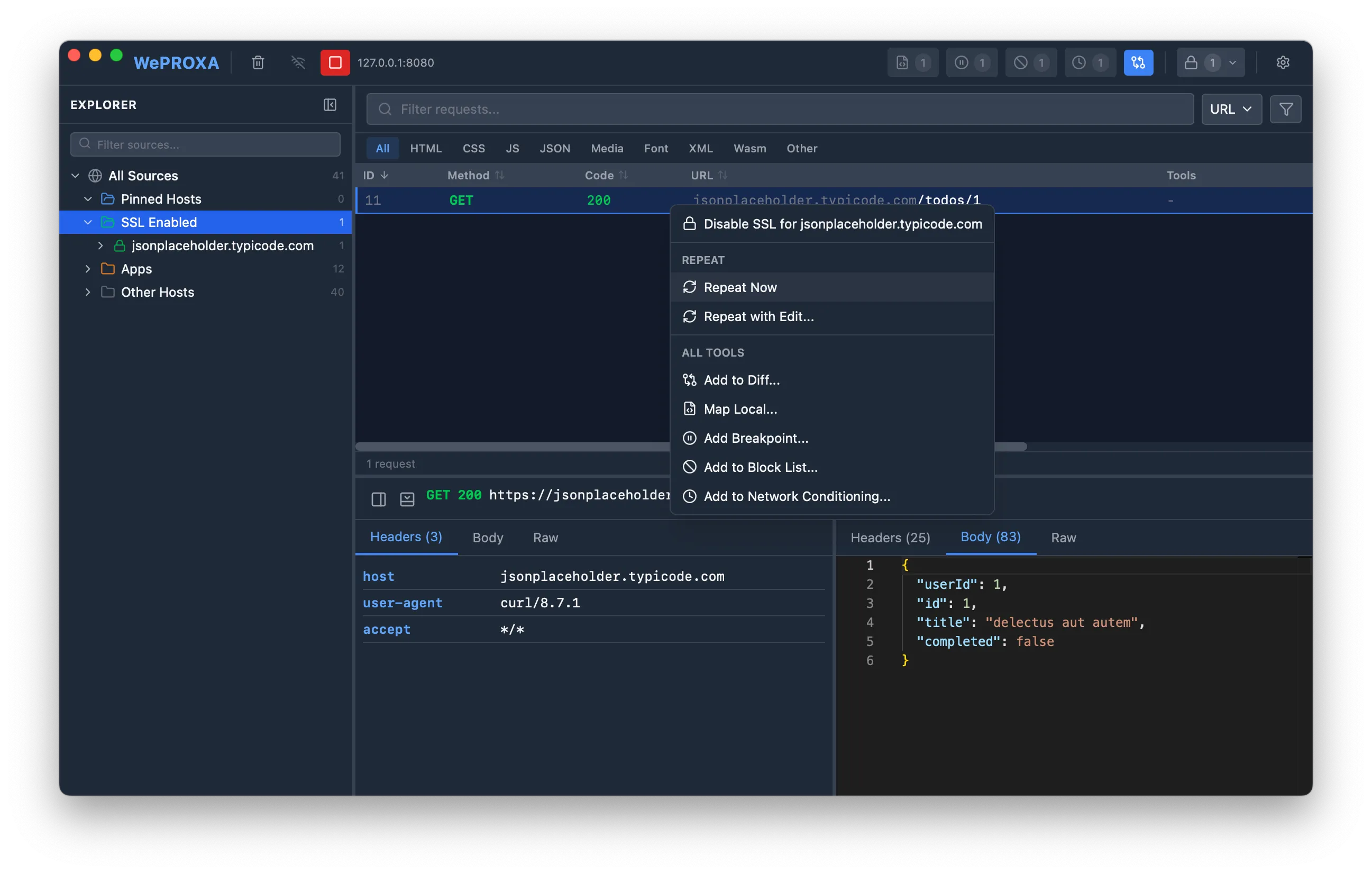
The request is resent immediately with the original method, URL, headers, and body. The repeated request appears in the main request list alongside your other captured traffic.
Repeat with Editing
Section titled “Repeat with Editing”To modify a request before resending:
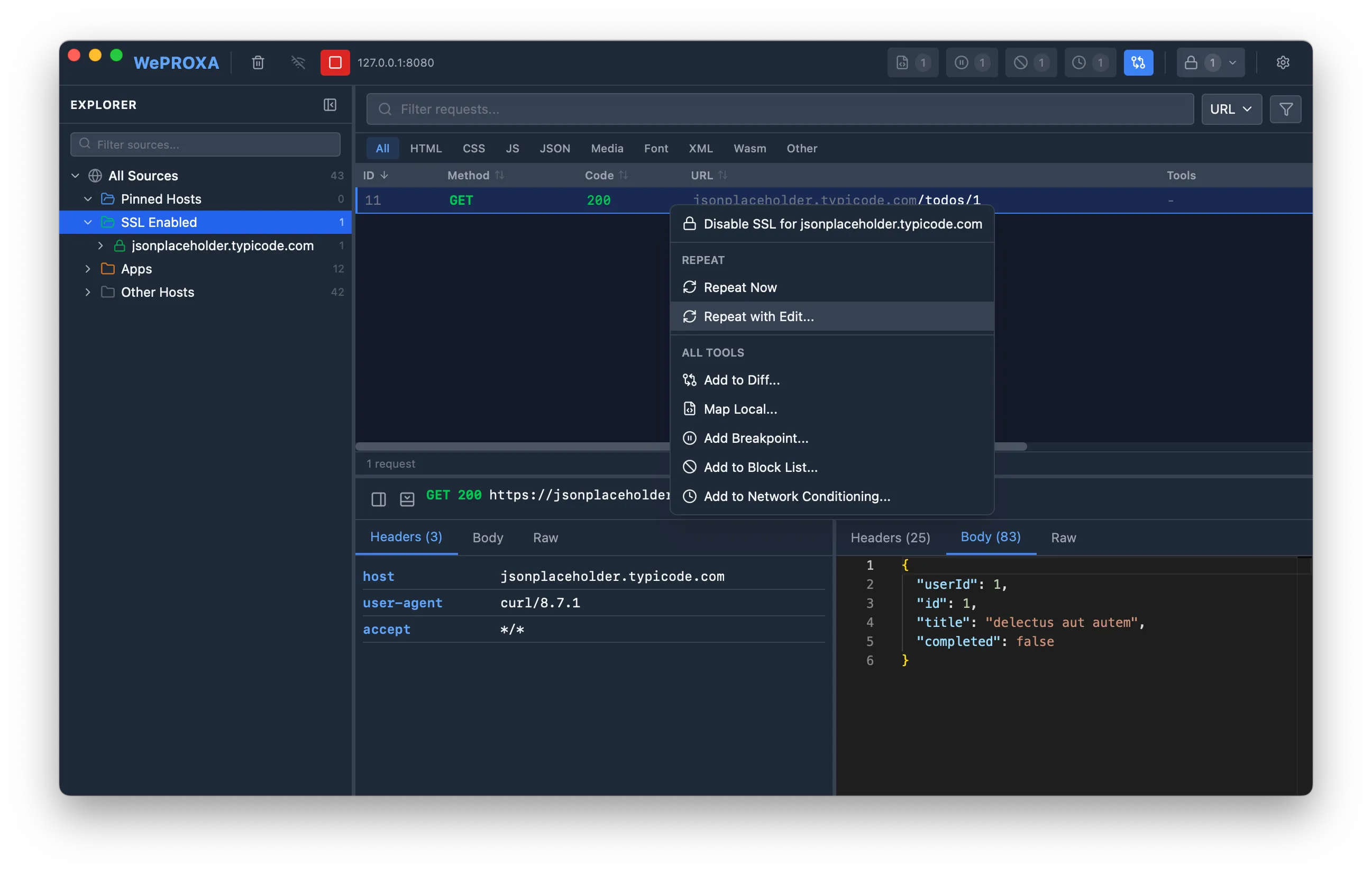
- Right-click on any request in the request list
- Select Repeat with Edit…
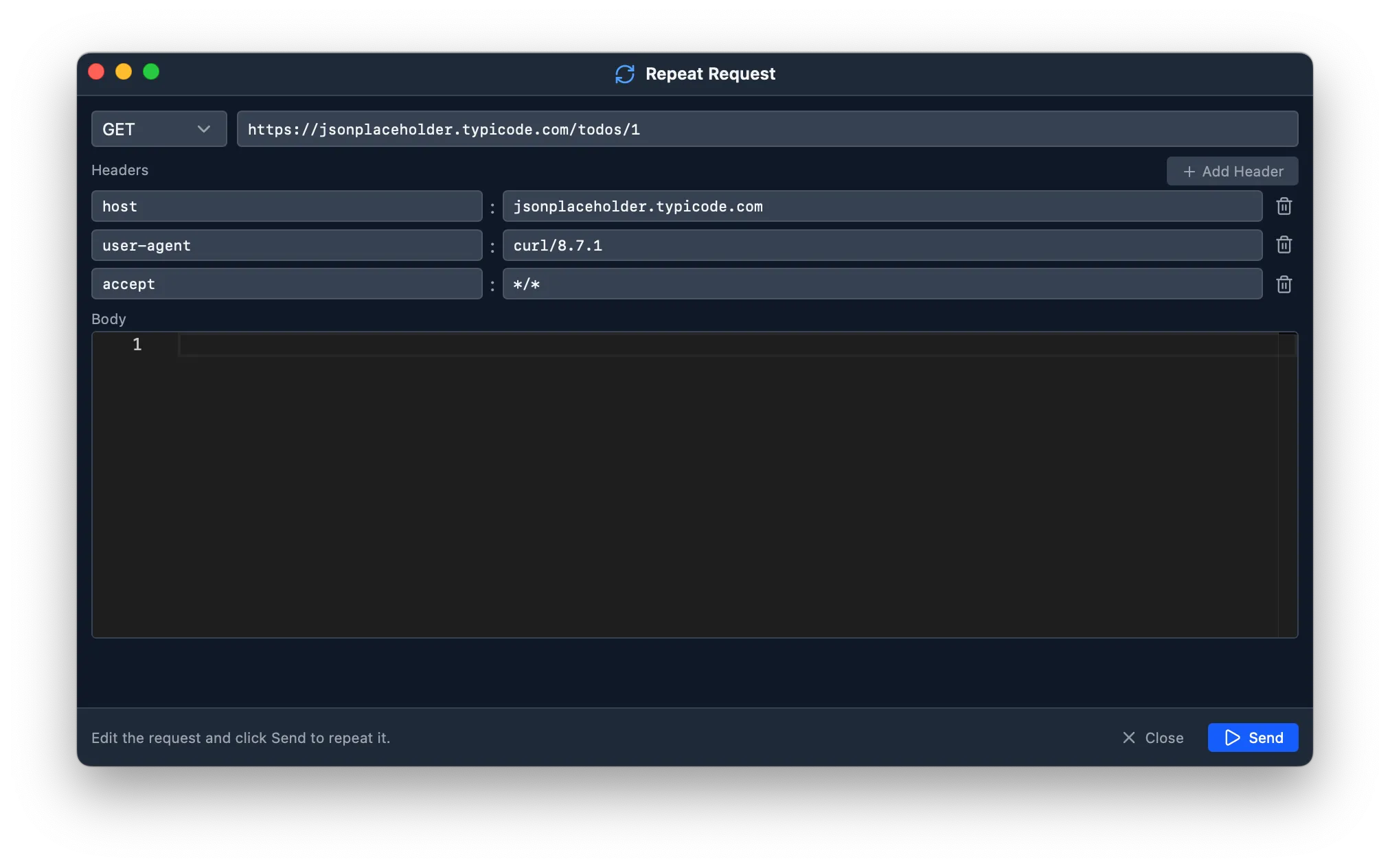
- A separate editor window opens with the original request pre-filled
- Modify the request as needed
- Click Send to execute
What You Can Modify
Section titled “What You Can Modify”- Method — switch between GET, POST, PUT, PATCH, DELETE, HEAD, OPTIONS
- URL — change the target endpoint
- Headers — add, edit, or remove request headers
- Body — edit the request payload with syntax highlighting (language auto-detected from
Content-Type)
Viewing Results
Section titled “Viewing Results”The repeat editor shows a brief success or error message after each send, along with the new request ID. To inspect the full response, find the repeated request in the main request list and open it in the Details Panel — repeated requests are logged just like any other captured traffic.
You can click Send multiple times from the same editor window to resend the request repeatedly, for example when testing different header values or body payloads.
Use Cases
Section titled “Use Cases”- API testing — quickly test different payloads against an endpoint
- Debugging — replay a failed request to reproduce an issue
- Exploration — modify parameters to understand API behavior
- Authentication testing — resend requests with different auth tokens