
Inspect Requests
WePROXA captures all HTTP and HTTPS traffic flowing through the proxy and displays it in a clean, real-time request list.
Request List
Section titled “Request List”The default layout opens with the source sidebar visible and the URL column shown, so you can immediately see where requests came from and where they are going. The main view shows all captured requests in a sortable table with columns for:
- ID — Numeric request identifier
- Method — GET, POST, PUT, DELETE, etc. (shows “BLOCKED” for blocked requests)
- Code — HTTP status code with color coding (green for 2xx, blue for 3xx, orange for 4xx, red for 5xx)
- Scheme —
HTTP,HTTPS,WS, orWSS(secure traffic shown in green) - Tools — Indicates which user-facing tools modified the request or response (e.g., Breakpoint, Map Local)
- Host — The server hostname
- URL — The full request URL
- Path — The URL path
- Query — The URL query string
- Remote Address — Resolved IP address and port of the server
- HTTP Version — Negotiated protocol (HTTP/1.1, HTTP/2.0, etc.)
- Client — The application or browser that made the request, shown with its app icon on macOS and Windows when one is available (a generic glyph is used as a fallback)
- Request Size — Request body size
- Response Size — Response body size, or tunnel byte totals after an upgraded connection closes
- Time — Timestamp of the request (HH:MM:SS)
- Duration — Time from request to response
- Scenario — Scenario that was active when the request was captured
Columns are sortable (click headers), draggable (reorder by dragging), resizable, and can be shown or hidden via the column visibility picker.
Column Widths
Section titled “Column Widths”Drag the border between two column headers to resize a column. Widths are remembered across restarts, alongside column order and visibility.
A column can never be dragged narrower than its own header title, and that minimum is measured from the header as it is actually drawn — so it stays correct when you switch language or change the UI font size. If a wider header makes a stored width too small, WePROXA clamps it for display but keeps the stored value, so the size you chose is still there to go back to.
Keyboard Navigation
Section titled “Keyboard Navigation”- Arrow Up / Arrow Down — Navigate between requests
- Enter — Expand the details panel if collapsed
Content Type Filters
Section titled “Content Type Filters”Quick-filter buttons above the list let you narrow results by content type: All, HTML, CSS, JS, JSON, Media, Font, XML, WASM, or Other.
Search Filters
Section titled “Search Filters”A search bar lets you filter requests across three scopes:
- URL — Match against the full URL (host and path)
- Request — Search the HTTP method, URL, client/app name, and request body
- Response — Search the status code, content type, and response body
Body-heavy searches run on the backend with a short debounce; everything else filters instantly.
When you’re viewing Saved Requests or a Session, request and response body search is unavailable. These views filter stored exchanges by metadata only and show a notice for advanced filters that require the live backend search.
Capture Milestones
Section titled “Capture Milestones”Use Add milestone beside the request count at the bottom of the live list to mark the current capture position. A numbered, colored divider separates traffic captured before and after that moment, so you can mark stages such as signing in, submitting a form, or retrying a request.
Adding a milestone keeps your filters and open request in place. Click its numbered badge to jump to the divider; this opens All live requests, clears search and content-type filters, disables the Advanced Filter, and returns to capture order. If you already sorted by ID, your ascending or descending direction is kept.
Dividers appear when the list is sorted only by ID. Under another sort, row colors still identify each traffic segment; choose Show capture order to bring back the dividers.
Right-click a badge and choose Remove milestone N, or focus it and press Delete or Backspace. You can keep up to ten milestones at once. Removing one leaves the other numbers and colors unchanged. Clearing the full live log or restarting WePROXA removes the milestones. To keep the exchanges themselves, save a Session.
Context Menu
Section titled “Context Menu”Right-click any request to access quick actions. Related actions are grouped into nested submenus you can navigate with the mouse or keyboard:
- Add to Filters — append Same Host, Same Path, Same Endpoint, Similar Requests, or Same Client conditions to the advanced filter, or hold ⌘ / Ctrl to replace the current query instead (Pro; see Advanced Filtering)
- Copy as cURL — Copy the request as a
curlcommand - Enable / Disable SSL for {host} — Toggle HTTPS interception for the request’s host
- Repeat — Choose Repeat Now to re-execute immediately, or Repeat with Edit… to modify the request first
- Save N Shown Requests as Session… — Copy the current live view into a persistent Session
- Record Session with This View… — Record new traffic matching a supported live view
- Export N Shown Requests as HAR… — Export the currently shown live requests, with sensitive-data sanitization enabled by default
- Tools — Open a utility or create a rule from the request:
- Add to Diff — Select requests to compare side by side
- Inspect JSON — Send the response body to the JSON Tools workbench
- Map Local — Create a Map Local rule pre-filled with the request’s URL
- Add Breakpoint — Create a breakpoint rule for the request’s URL pattern
- Add Block Rule — Block requests matching this URL
- Add Throttle Rule — Add a network conditioning rule for this URL
The context menu only shows actions that apply to the selected request. Internal lifecycle markers, such as upgraded tunnel handling, are kept out of tool labels so the list focuses on rules you configured.
The Session and HAR actions operate on all currently shown live requests. They also appear when you right-click empty space in the list. See Start from an App, Host, or Filtered View.
On macOS and Windows, WePROXA attributes local traffic to the source application when the operating system exposes that process information. The request list and source sidebar show detected app names and icons where available, with a generic client label used as a fallback.
Request Details
Section titled “Request Details”Click on any request to open the details panel with full information:
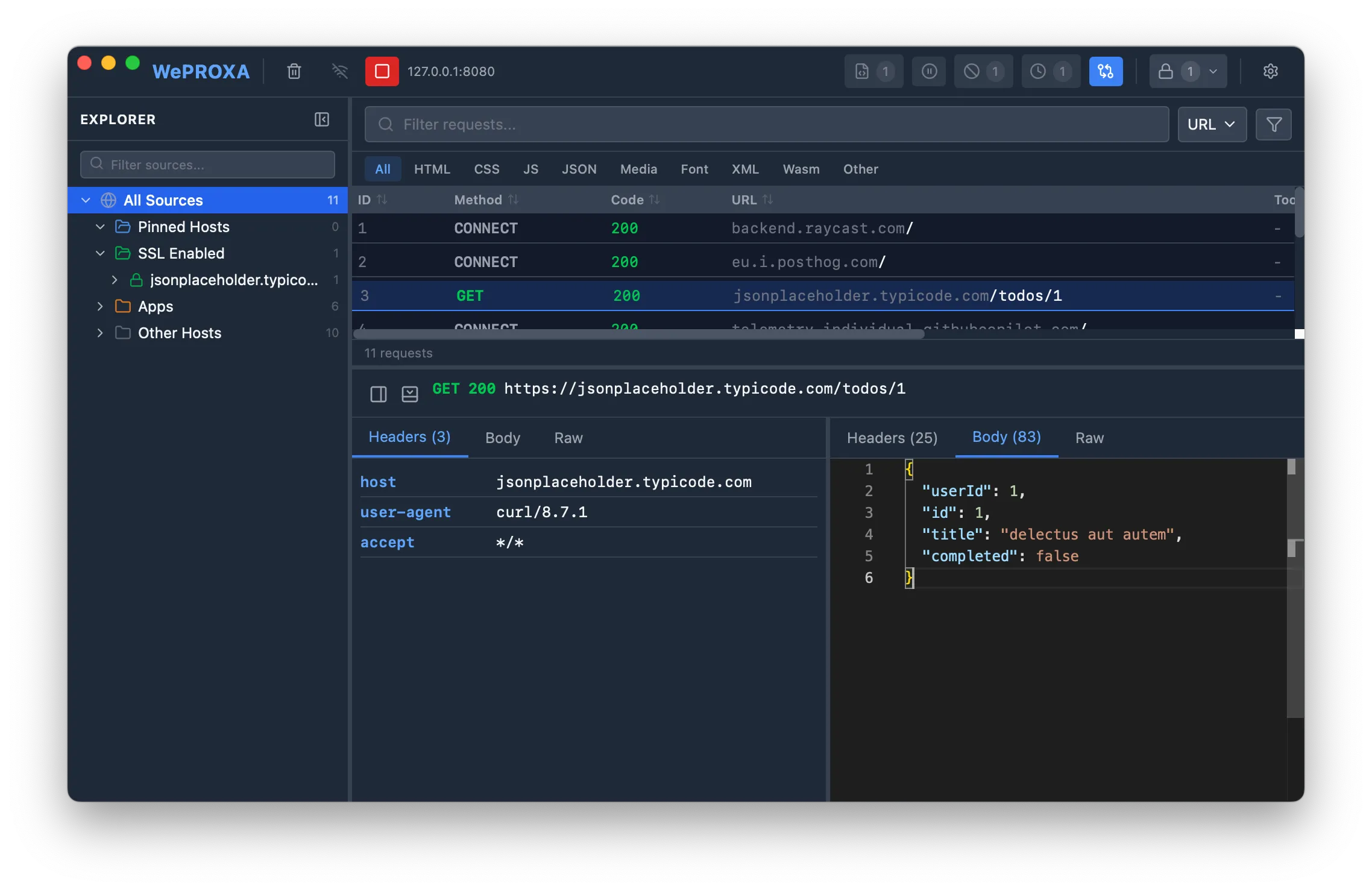
The details panel sits below the request list and can be collapsed when not needed. The request method and response status are shown as compact color-coded badges at the top of the panel so they’re easy to scan at a glance.
If the request was captured while a Workspace Scenario was active, the header also shows that Scenario as a capture-time badge. The value stays attached to the request and saved snapshot even after you activate another Scenario.
Detail Actions
Section titled “Detail Actions”The header above the details tabs includes contextual actions:
- Save — store the currently selected live HTTPS request as a persistent snapshot for later inspection. The button appears only for HTTPS requests whose host has SSL interception turned on, so plain HTTP requests and undecrypted tunnels cannot be saved from the details panel
- Delete — remove a saved snapshot when you’re viewing an item from Saved Requests
- Download — save the current response body to your system Downloads folder
Saved snapshots are available from the sidebar even after the original live request scrolls out of the session.
When you select an HTTPS request from a host that WePROXA is not decrypting, a banner reads SSL interception is not enabled for {host}. Click Enable SSL to add that host to your SSL list. On the free tier, once all 5 SSL hosts are in use, the banner offers an upgrade instead. See SSL Interception.
Request Section
Section titled “Request Section”- Headers — All request headers in a key-value table (count shown in the tab label)
- Query — The URL query string decoded into a name/value table (count shown in the tab label). This tab appears only when the request URL has query parameters, and empty names or values are shown as
(empty) - Cookies — Request
Cookieheaders parsed into individual cookie names and values - Body — Request body with syntax highlighting (JSON, XML, HTML, etc.), or media preview for binary content
- Raw — Full HTTP/1.1 request format (method, path, headers, and body)
Large request bodies load on demand so selecting a request stays responsive even when the payload is big. Body buffering is bounded so unusually large uploads cannot force WePROXA to keep unlimited data in memory.
When a request carries multiple Cookie headers, the Headers tab keeps them tidy as one combined entry while the Cookies tab breaks them into individual pairs. This is especially useful for HTTP/2 browser traffic, where clients may split cookies across multiple header fields.
The request Cookies table reserves separate widths for names and values. Long names and values wrap within their columns so they remain readable in a narrow details panel.
If a tool modified the request (e.g., Breakpoint, Block List), a “Modified By” indicator is shown.
Response Section
Section titled “Response Section”- Headers — All response headers in a key-value table (count shown in the tab label)
- Cookies — Response
Set-Cookieheaders grouped by cookie, including attributes such asPath,Domain,HttpOnly,Secure, andSameSite - Body — Response body with auto-formatting and syntax highlighting. JSON is pretty-printed. Images, video, and audio are previewed inline with file metadata (content type, size, dimensions)
- Raw — Full HTTP/1.1 response format (status line, headers, and body)
- Frames — WebSocket frames for successful
101 Switching Protocolsresponses, with sent/received filters, payload search, opcodes, sizes, and timestamps
For large text or media responses, WePROXA shows the response metadata first and lets you click Load body only when you actually need the full content. The response Download action is available from both the body and raw views.
When the response has a body, select Inspect JSON beside the response tabs to open it in the standalone JSON Tools workbench. WePROXA does not rely on the response’s content type: malformed JSON and incorrectly labeled API responses still open, and the workbench explains the parse error. The same action is available under Tools → Inspect JSON in the request context menu.
When a WebSocket connection is captured, WePROXA displays the request as ws:// or wss:// and opens the Frames tab automatically. See WebSocket Inspection for details.
If a tool modified the response (e.g., Map Local, Breakpoint), a “Modified By” indicator is shown.
When a Map Local rule produced the response, the same line also names it as Answering rule. It shows the rule’s external key when it has one and its ID otherwise, with the full ID always available on hover. With several overlapping rules in play this is the fastest way to confirm which one actually answered rather than which one you expected to — and the attribution is preserved in saved snapshots.
A request refused by Pass-Through containment is marked with the Pass-Through tool, keeping it distinct from a Block List rule and from a genuine 403 returned by a real server.
A connection labeled Not decrypted: certificate rejected has no decrypted response. Its response pane explains that the app may not trust the WePROXA certificate or may have closed the connection before the handshake finished. Click Learn more for certificate troubleshooting. These failures appear in the log without a notification. Other failed or blocked requests show No response instead of Waiting for response….
Source View
Section titled “Source View”Toggle to the source/tree view in the sidebar to see requests organized into sections:
- All — Every captured request
- Saved Requests — Persistent HTTPS request snapshots you explicitly saved from the details panel
- Sessions — Named collections of stored exchanges, including active recordings; select a session to inspect it or use + to create one (Sessions & HAR Export)
- Filters — Your saved advanced filters (Pro)
- Modified by Tool — Requests changed by a tool, grouped under the tool that changed them (Map Local, Breakpoints, Block List, Network Conditioning, Scripting, Pass-Through, or Repeat), so you can see exactly what each rule touched. Requests you replayed appear under the Repeat group, and requests refused by Pass-Through containment under Pass-Through. Long lists collapse behind a Show N more control
- Pinned — Manually pinned hosts for quick access (pin/unpin via right-click)
- SSL Enabled — Hosts with SSL interception enabled (toggle via right-click)
- SSL Enabled Apps — Apps with SSL interception enabled, grouped as app → host → path
- Apps — Requests grouped by the client application or browser, with detected app icons on macOS and Windows when available
- Remote Devices — Requests from remote devices, grouped by IP address
- Other — Every remaining host, meaning each host that is neither pinned nor SSL-enabled. Pin a host or enable SSL for it and it moves to that group
You can also move through the tree with the keyboard. See Sidebar Navigation.
Each section can be expanded into host and path hierarchies. Saved requests get their own host/path tree, and app-based SSL rules expand as app → host → path so you can isolate one client quickly. A search field at the top filters hosts and app names in real time.
WePROXA remembers whether stable top-level groups and Modified by Tool subgroups are expanded or collapsed between launches. Traffic-derived host, app, device, and path nodes remain session-specific and start collapsed in a new session.