
Workspaces
Workspaces separate projects and environments. Each Workspace contains Scenarios for individual acceptance criteria, plus reusable Shared Rules and a Rule Library. Only one Workspace and one Scenario within it are active at a time.
What a Workspace Contains
Section titled “What a Workspace Contains”Each Workspace owns reusable rule definitions for these tools:
Scenarios reference these definitions and store their own tool-level enabled states. Captured requests, saved requests, traffic Sessions, proxy settings, and SSL interception rules are not Workspace-specific. Switching Workspaces restores that Workspace’s active Scenario without clearing traffic already shown in the request list.
The Workspaces Tab
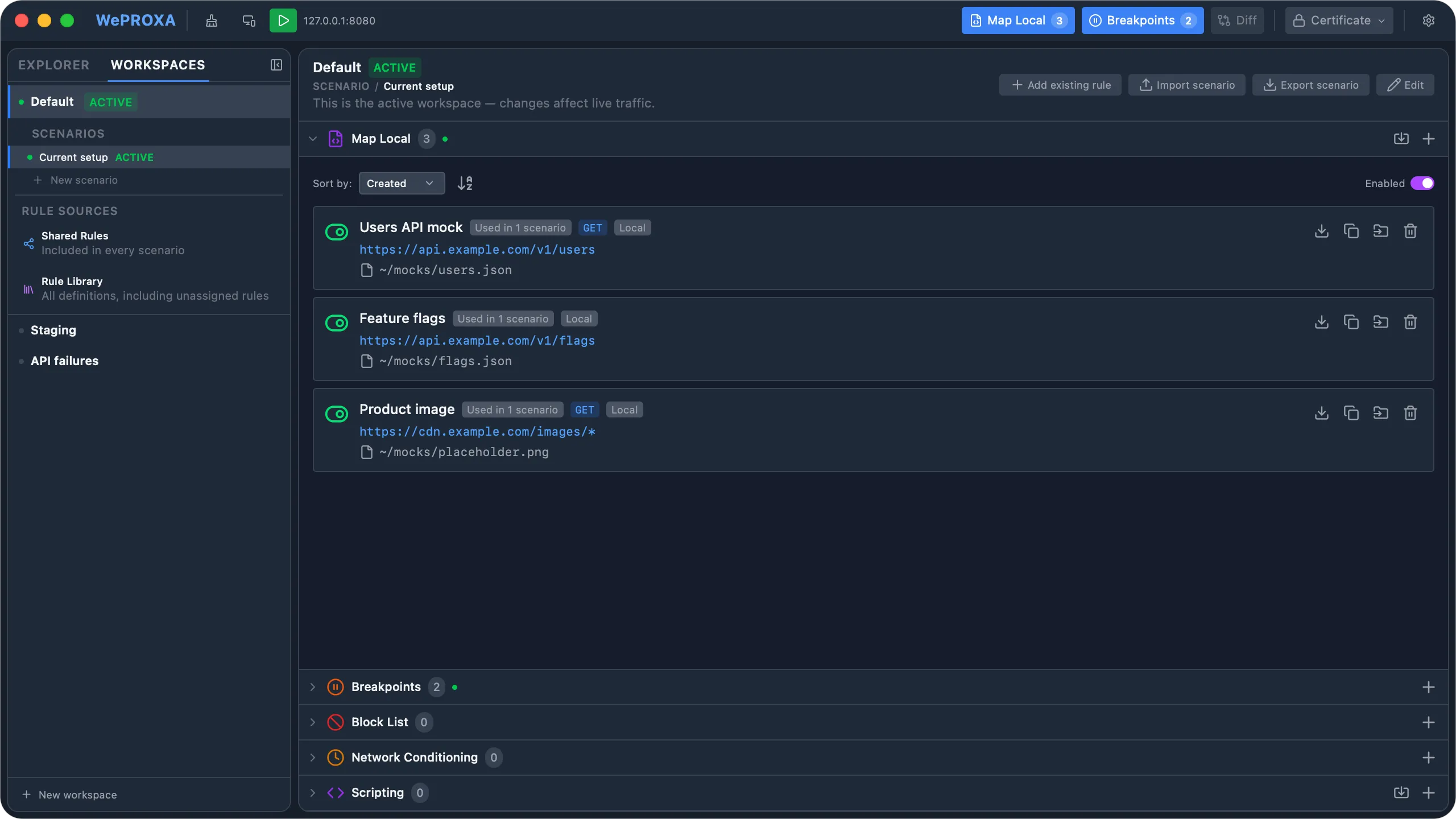
Section titled “The Workspaces Tab”The left sidebar has two tabs: Explorer (the traffic and source tree) and Workspaces (the workspace manager). Open the Workspaces tab to see every workspace, create new ones, and select any workspace to view and edit its rules.
Each workspace row shows its Scenario count and whether it is active. Use the arrow to expand or collapse the selected workspace’s Scenarios, Shared Rules, and Rule Library. Selecting or expanding a workspace is an editing action only; it never changes which rules handle live traffic.
Switching Workspaces
Section titled “Switching Workspaces”Only one workspace is active at a time, and only the active workspace’s rules match live traffic.
- Open the Workspaces tab.
- Select the workspace you want to apply.
- Use the row’s activation control to apply it to live traffic.
WePROXA saves the workspace you are leaving and loads the selected workspace’s rules and tool enabled states. If a request is paused at a breakpoint when you switch, WePROXA releases that breakpoint before loading the next workspace.
You can also switch without opening the sidebar. A native Workspaces menu appears in the macOS menu bar and the tray menu, grouping the Switch Workspace and Switch Scenario submenus. Switch Workspace lists every workspace with the active one checked. Selecting a workspace there activates it immediately, and the list updates automatically as you create, rename, or delete workspaces.
If you prefer switching from the toolbar, enable Show workspace and scenario switcher in Settings › Appearance. See Toolbar & Tray.
Creating and Managing Workspaces
Section titled “Creating and Managing Workspaces”From the Workspaces tab you can create, rename, delete, and set the active workspace. Row actions appear when the row is hovered or focused, keeping the list compact without hiding the controls from keyboard users.
- Create - Choose New workspace at the bottom of the sidebar and enter a name.
- Import - Choose Import workspace… to add a portable Workspace file as a new Workspace.
- Export - Use a row’s Export workspace action to save its Scenarios and rules together (Pro).
- Activate - Apply an inactive workspace and its selected Scenario to live traffic.
- Rename - Edit the name inline without affecting its rules.
- Delete - Confirm the inline delete action to remove a workspace and its saved rules. The last remaining workspace cannot be deleted.
Deleting the active workspace switches to another available workspace first. Managed Map Local response files owned by the deleted workspace are removed, while files you selected from elsewhere on your computer are left untouched.
Editing Rules Without Activating
Section titled “Editing Rules Without Activating”Selecting a Workspace reveals its Scenarios, Shared Rules, and Rule Library. Select any Scenario to preview its effective rules without activating it, so you can prepare an acceptance criterion without disturbing live capture.

Edits are saved immediately. New rules created from an inactive Scenario editor are assigned explicitly to that Scenario. Be aware that editing a definition referenced by the active Scenario or Shared Rules intentionally updates every place that reuses it; rule cards identify that propagation before you edit.
Detached Rule Editors
Section titled “Detached Rule Editors”Hold ⌘ on macOS or Ctrl on Windows while clicking a rule card to open that rule in its own window. With the card focused, ⌘ Enter or Ctrl + Enter does the same. This works for Map Local, Breakpoints, Block List, Network Conditioning, and Scripting. A plain click still opens the inline form.
Opening the same rule again focuses its existing window. Each editor uses that tool’s usual form, and closing the form closes the window.
An editor opened from the Workspaces view saves back to the Workspace and Scenario, Shared Rules, or Rule Library you were viewing, including inactive Workspaces. Editors opened from a tool panel follow the active Workspace and close when you switch Workspaces.
Sidebar Layout Across Views
Section titled “Sidebar Layout Across Views”The left sidebar keeps one shared width and collapsed state while you move between Explorer, a Workspace, a Scenario, Shared Rules, and the Rule Library. Collapsing it in one view keeps it collapsed in the others; resizing it carries the same width across each view.
When the sidebar is collapsed, use the panel button at the left edge of the active view to reopen it. Switching views does not activate a Workspace or Scenario and does not reset the live capture.
Copying Rules Between Workspaces
Section titled “Copying Rules Between Workspaces”Each rule has a Copy to workspace action (the folder-in icon next to the rule’s other controls). Use it to clone a single rule into another workspace:
- Select a rule’s Copy to workspace action.
- Pick a destination Workspace.
- Pick its destination Scenario, Shared Rules, or Rule Library.
The rule is added to the destination as an independent clone — later edits or deletions in either workspace don’t affect the other. For Map Local rules that serve a managed response file, the copy receives its own fresh managed file, so editing the copied response never changes the original.
The action is available only when more than one workspace exists (creating additional workspaces is a Pro feature).
Exporting and Importing a Workspace
Section titled “Exporting and Importing a Workspace”A .weproxa-workspace.json file carries the whole debugging setup:
- Every Scenario, its rule assignments, tool enabled states, tags, containment settings, and declared SSL prerequisites.
- Shared Rules and all Rule Library definitions, including rules no Scenario uses yet.
- Map Local response files embedded in the bundle, plus inline mock responses and scripts.
Captured traffic, saved requests, Sessions, proxy settings, and the machine’s SSL interception rules stay on the source machine. Use HAR export to share traffic.
Export
Section titled “Export”- Open the Workspaces tab.
- Hover or focus the Workspace row and choose Export workspace.
- Review the confirmation, click Export, and choose a file location.
Mock responses and scripts are exported as stored and can contain sensitive values. Review them before sharing the file. Export requires Pro.
Import
Section titled “Import”- Choose Import workspace… at the bottom of the Workspaces sidebar.
- Select a
.weproxa-workspace.jsonfile. - Review the Scenario, rule, and embedded-file counts, plus any errors or warnings.
- Choose a name and click Import.
- Inspect the imported setup, then use the Workspace’s activation control when you want its rules to handle live traffic.
Import creates a new, independent Workspace with its own rules and managed Map Local files. Importing the same file twice creates two separate Workspaces. The new Workspace is selected for inspection but stays inactive until you activate it.
The preview reports missing HTTPS decryption prerequisites and rules whose tools are disabled. Importing a bundle does not enable global SSL interception; review SSL rules before using its HTTPS fixtures.
Import follows the Workspace and rule limits of your license. Since the free tier already includes one Workspace, adding an imported Workspace normally requires Pro. To share just one Scenario, use Scenario bundles instead.
Existing Rules After Upgrading
Section titled “Existing Rules After Upgrading”The first time a version with workspace support starts, WePROXA creates a workspace named Default and moves your existing Map Local, Breakpoint, Block List, Network Conditioning, and Scripting rules into it. When upgrading to Scenarios, each existing Workspace receives an active Current setup Scenario that preserves its rule membership and tool states without moving or duplicating the rule definitions.
Free and Pro Limits
Section titled “Free and Pro Limits”Free accounts include the Default Workspace with up to three Scenarios. Creating additional Workspaces is a Pro feature, and Pro accounts can create unlimited Workspaces and Scenarios.
Example Workflows
Section titled “Example Workflows”- Keep development, staging, and production rules separate.
- Create one workspace for API failure simulations and another for normal capture.
- Isolate Map Local mocks for different projects.
- Pair Scripting and Network Conditioning rules for a repeatable test scenario.
When using the MCP server, new rules are assigned to the Scenario currently active in WePROXA.