
Scenarios
Scenarios live inside a Workspace. A Workspace remains the project or environment boundary; each Scenario describes one concrete setup, such as “checkout declines an expired card” or “profile request times out.” Exactly one Scenario is active in each Workspace.
What a Scenario Contains
Section titled “What a Scenario Contains”A Scenario stores:
- A name and optional acceptance criteria, expected outcome, and HTTP(S) ticket URL
- References to Workspace-owned Map Local, Breakpoint, Block List, Network Conditioning, and Scripting rules
- An enabled state for each of those five tools
- Optional Pass-Through containment, declared SSL prerequisites, and free-form tags
A newly created Scenario starts with all five tools enabled, so its rules answer traffic as soon as it is activated. A Scenario born with silent tool switches would look activated while answering nothing.
Rules are reusable definitions. A Scenario references them instead of copying them, so two acceptance criteria can intentionally share the same mock or script. Shared Rules apply to every Scenario in the Workspace. The effective live setup is the active Scenario plus Shared Rules, filtered by each rule’s own enabled state and the Scenario’s tool states.
Create and Activate a Scenario
Section titled “Create and Activate a Scenario”- Open the Workspaces sidebar and expand the Workspace that owns the setup.
- Choose New scenario, give it a clear acceptance-criterion name, and optionally add the criteria, expected outcome, and an HTTP(S) ticket link.
- Add new rules or reuse definitions from Shared Rules and the Rule Library.
- Set the five tool toggles for the Scenario.
- Select Activate, review the summary of rules and tools that will change, and confirm.
Creating or selecting a Scenario does not change live traffic. Only activation applies its effective rules and tool states. Activation is atomic, so traffic never runs against a half-applied setup.
Browse Without Activating
Section titled “Browse Without Activating”Open the Workspaces sidebar and expand a Workspace:
- Select a Scenario to preview and edit its effective rules.
- Select Shared Rules to manage rules that apply to every Scenario.
- Select Rule Library to see all Workspace-owned definitions, including unassigned rules.
Selecting an inactive Scenario does not change live traffic. Choose Activate when you are ready. WePROXA shows how many rules and tools will be enabled or disabled before applying the switch atomically. Any request paused at a breakpoint is released during the switch.
The activation summary also reports three things that make a Scenario look applied while answering nothing. All three are advisory — they never block an activation:
- Shadowed rules — a rule an earlier rule always answers before, so it can never fire. See Verify a Scenario actually answers.
- Rules under a disabled tool — rules sitting beneath one of the five switches the Scenario turns off. They will silently never match.
- Unsatisfied SSL hosts — hosts the Scenario declared it needs decrypted that this machine does not intercept.
The sidebar, the native Workspaces menu, and the tray all show the active Workspace and Scenario and provide quick switching. The toolbar can show them too — enable Show workspace and scenario switcher in Settings › Appearance, since it is hidden by default.
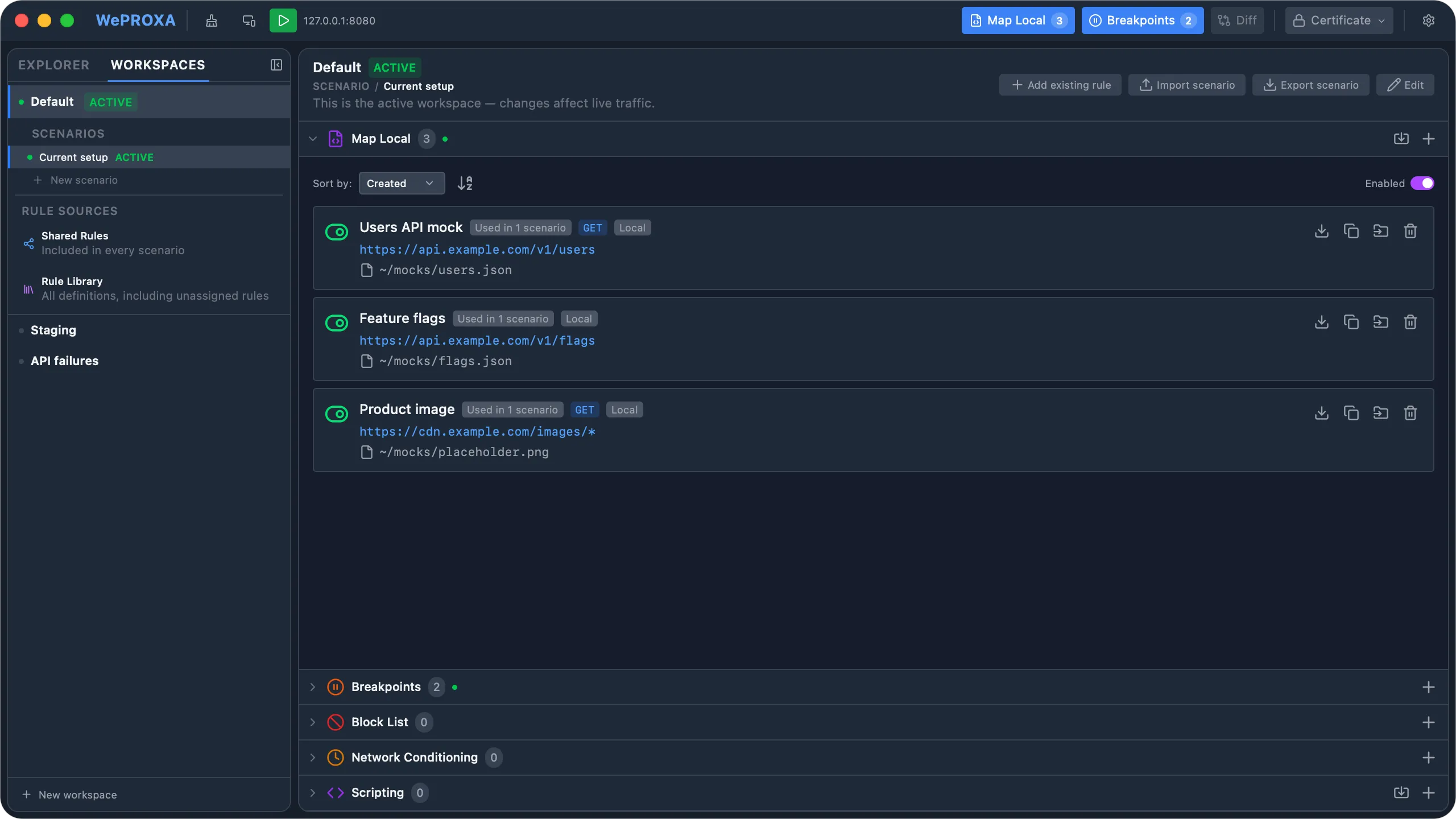
Scenario row actions
Section titled “Scenario row actions”Each Scenario row shows whether it is Active for live traffic or the saved Default that will run when its currently inactive Workspace is activated. Hover or focus the row to use its inline actions:
- Activate applies the Scenario when its Workspace is already active. Activate the Workspace first when it is not.
- Rename edits the Scenario name inline.
- Duplicate asks for the copy’s name, then creates it from the same metadata and rule references. Free Workspaces can contain up to three Scenarios.
- Delete removes the Scenario when the Workspace has another Scenario to retain.
Selecting a Scenario opens it for editing; it does not activate it. This distinction lets you prepare or duplicate a setup without changing the rules currently handling traffic.
Reuse and Diverge Safely
Section titled “Reuse and Diverge Safely”Rule cards show whether a definition is Shared and how many Scenarios reference it. Editing a reused definition intentionally updates every referencing Scenario.
When one Scenario needs different behavior, choose Make independent copy. WePROXA creates a new rule, swaps only that Scenario’s reference, and independently clones managed Map Local payload files. Duplicating a whole Scenario copies its metadata and references without cloning physical rules.
Use Add existing rule to reference a definition from the Rule Library. Removing a rule from a Scenario removes only its reference; delete it from the Rule Library to remove the physical definition and every reference to it.
Rule Precedence
Section titled “Rule Precedence”Every first-match-wins tool — Map Local, Breakpoints, Block List, and Network Conditioning — resolves overlapping rules the same way: by priority, then creation time within a priority band, then rule ID as a stable tiebreaker. Higher priority wins, and a rule with no priority sits in the neutral band where every rule sat before the field existed.
The listings sort by the same key, so the rule listed first is the rule that will answer. Set a priority to promote a narrow fixture above a catch-all without recreating either, or use a negative value to demote a catch-all below everything else. See Rule Precedence for the details.
Scripting does not pick a winner. Every matching script runs, in this same order, and each script sees the changes made by the scripts before it.
Verify a Scenario Actually Answers
Section titled “Verify a Scenario Actually Answers”A Scenario that activates cleanly can still answer nothing, which reads as a passing run for the wrong reason. Two independent signals catch that:
- Shadowing detection runs before a run and reports rules that can provably never fire — two rules with identical URL patterns, or a rule whose pattern is a literal prefix followed only by wildcards that contains another rule’s pattern. It reports only what it can prove: deciding in general whether two globs share an input is not reliably decidable, and a detector that silently misses cases is worse than none, because it will be trusted. Everything else is out of scope, not reported as safe.
- Hit counters answer the same question empirically. Every rule counts how many times it actually answered, so a fixture with zero hits after you exercised a flow is dead or shadowed. Counters are runtime-only: they are never persisted or exported, so they cannot leak machine-local activity into a committed bundle. Editing a rule resets its counter, as does rebuilding the Scenario’s live rule set.
Both are exposed through the MCP rule listings and the activation preview. Method coverage, breakpoint phases, and Map Local request conditions all narrow what a rule can shadow — a conditional fixture answers only some of the requests its URL accepts, so it can be shadowed but can never shadow.
Declared SSL Prerequisites
Section titled “Declared SSL Prerequisites”A Scenario can name the hosts it needs WePROXA to decrypt for its HTTPS rules to match. Bundles are portable, so they reach machines that never configured decryption for those hosts — where every HTTPS fixture silently fails to match and the run passes against real traffic instead.
WePROXA reports the gap on the import preview and on the activation report, listing declared hosts this machine does not intercept. It never applies them: SSL host configuration is global rather than Workspace-scoped, so auto-applying would silently rewrite a setting shared with every other Workspace on the machine.
Application-scoped SSL rules deliberately do not count as coverage. They key on the connecting client, which a declared hostname does not name.
Tags and External Keys
Section titled “Tags and External Keys”Scenarios and rules both carry free-form key/value tags. Tags are sorted on write, so a bundle exported before and after an unrelated change still produces a clean diff, and a Workspace that tags nothing produces exactly the bytes it did before tags existed. Rule listings can filter on them; filtering is conjunctive and applied after precedence sorting, so the surviving rules still list in the order the matcher resolves them.
A rule can also carry an external key — a caller-owned identity, unique across the whole Workspace rather than per tool. A repeated authoring pass uses it to reconcile against the rule it created last time instead of guessing by name, so re-running it refreshes rules in place rather than creating duplicates. Both are set through the MCP weproxa_rules_annotate and weproxa_scenarios_setTags tools.
Request Attribution
Section titled “Request Attribution”Every newly captured request records the active Scenario ID and name. That attribution remains unchanged if you switch Scenarios before the response arrives. It is surfaced through the optional Scenario Request List column and preserved in saved requests. Older saved requests remain valid with no Scenario attribution.
Use the column visibility picker in the Request List header to show the Scenario column when you want to compare traffic captured under different Scenarios. The recorded value is the authoritative capture-time value; it does not follow the Scenario that happens to be active when you inspect the request later.
Share a Portable Scenario
Section titled “Share a Portable Scenario”Scenario files use the .weproxa-scenario.json format. They include metadata, tool states, complete effective rule definitions, scripts, and embedded Map Local files. Captured traffic is never included.
- Select a Scenario and choose Export scenario.
- Review the privacy warning. Scripts and mock payloads can contain sensitive data.
- On the receiving machine, choose Import scenario and review the validation preview.
Import always creates fresh Scenario and rule IDs and fresh managed Map Local files. Shared source rules become local references in the imported Scenario, so an import cannot change other target Scenarios. A missing or unreadable local file, a file larger than 32 MiB, or a bundle larger than 128 MiB is rejected before anything is changed.
Import is available on Free while the Workspace remains within its Scenario and physical-rule limits. Export requires Pro.
Bundles as a Committed Artifact
Section titled “Bundles as a Committed Artifact”The same file can be produced and consumed through MCP, which is the path to take when the bundle belongs in version control next to the code it mocks. A bundle is always a file path, never a tool payload — it can reach 128 MiB with embedded fixtures.
weproxa_scenarios_export writes the bundle to an absolute path you choose and returns:
- The exact file SHA-256.
- A portable content SHA-256 that normalizes generated rule IDs, timestamps, and embedded-file source paths, so the same logical Scenario exported twice compares equal. Store the content normalization version returned alongside it — a future canonical form may intentionally produce a different digest for the same bundle.
- Warnings worth fixing before the file is committed, such as a Scenario exporting rules under a switched-off tool. Those fixtures do nothing on the importing machine.
weproxa_scenarios_importPreview dry-runs an import and writes nothing. It reports the rules it would create, the fixtures it would write, whether the Scenario name collides, declared SSL hosts this machine does not decrypt, and — for unlicensed Workspaces — the exact per-tool limit arithmetic (existing + incoming vs allowed) rather than only a verdict, so you can decide whether to trim the bundle or free rules in the target.
Shared Rules on import
Section titled “Shared Rules on import”A bundle keeps the Scenario’s own rule references and the source Workspace’s Shared Rules in separate fields, merged only at import:
merge(default) — import both, which reproduces the source most faithfully.omit— import only what the Scenario references directly. Use it when the target Workspace has its own Shared Rules that the source’s would duplicate or fight. Every dropped rule is reported rather than dropped quietly.
Ordering and external keys
Section titled “Ordering and external keys”Import re-stamps every rule with a fresh ID, which would destroy the ID tiebreaker that resolves overlaps. To prevent that, the importer walks the bundled rules in their source precedence order and hands each an increasing creation timestamp starting from now — so an imported Scenario resolves an overlap exactly as the Workspace it came from did, while its rules still read as new rather than backdated.
External keys survive an import unchanged. A key already claimed in the target Workspace blocks the import rather than creating a second owner, which also stops one bundle from being imported twice into the same Workspace by accident.
Export stays Pro-gated; import is not, so one licensed producer can author bundles for a team of free-tier consumers.
Free and Pro Limits
Section titled “Free and Pro Limits”Free includes up to three Scenarios per Workspace. Pro unlocks unlimited Scenarios and portable export. A Workspace always retains at least one Scenario; existing profiles are migrated automatically into an active Current setup Scenario without moving or deleting rule files.